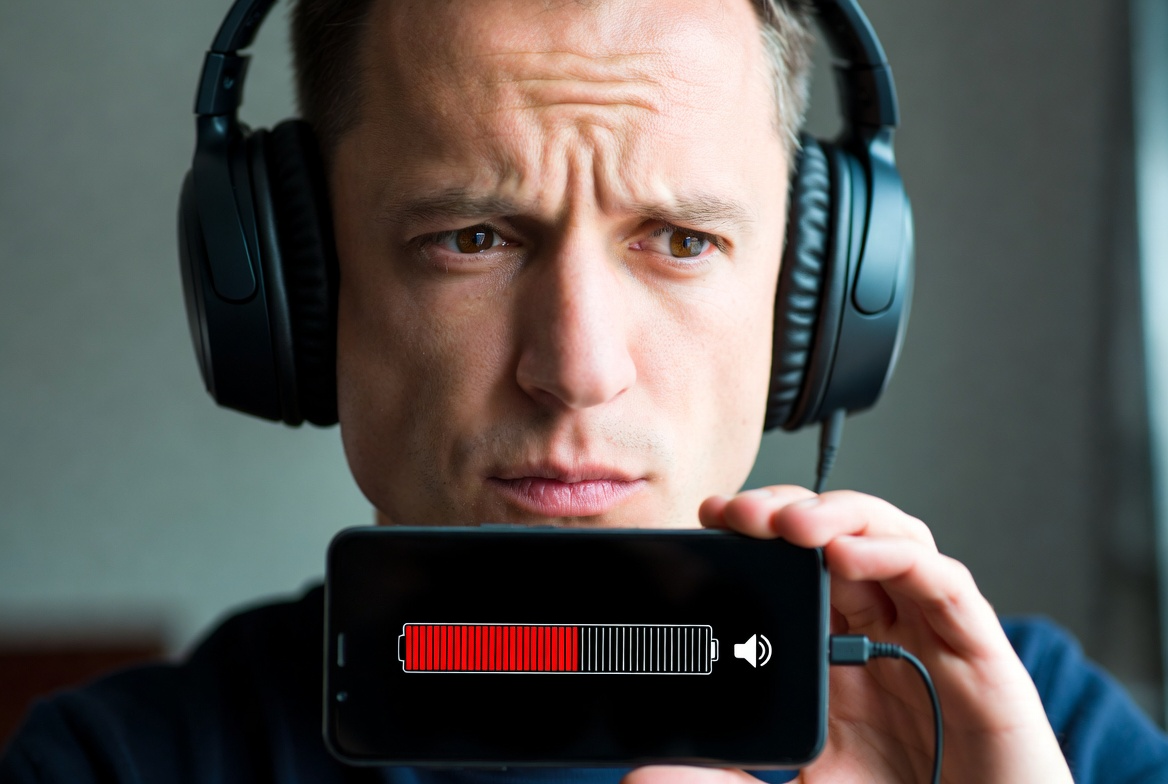
You go to put on your favorite pair of headphones, hit play, and start wondering why are my headphones so quiet even when the volume’s turned all the way up.
Yeah, I’ve been there. There you are twirling the cable, poking at your phone or even accusing your ears: Is it just me?” Spoiler alert: It’s not just you. Quiet headphones are among the most widespread tech annoyances.
The time that it happened to me, I spent an hour working it out, only to find that a basic “volume limiter” was the cause. And that got me wondering: Most of us don’t really know why our headphones sound quieter, or even what we can do about it.
So in this piece, we’re going to crack the case open. I’m going to cover every potential explanation for why headphones sound so quiet and more importantly, how to fix them without losing your sanity (or hearing).
See Details on Amazon

Here’s what you’ll learn:
-
Why your headphones might suddenly sound quieter
-
How to troubleshoot the issue step-by-step
-
When to fix and when to replace
-
Insider tips to prevent this from happening again
Grab yourself a cup of coffee (or whatever helps you find your patience) and let’s get to work on those silent cans.
Why your headphones might suddenly sound quieter
Silent headphones aren’t always a death sentence for hardware. In the majority of instances, it’s a battle over settings, hygiene or small compatibility oddities.
Hidden volume restrictions and incompatible sliders
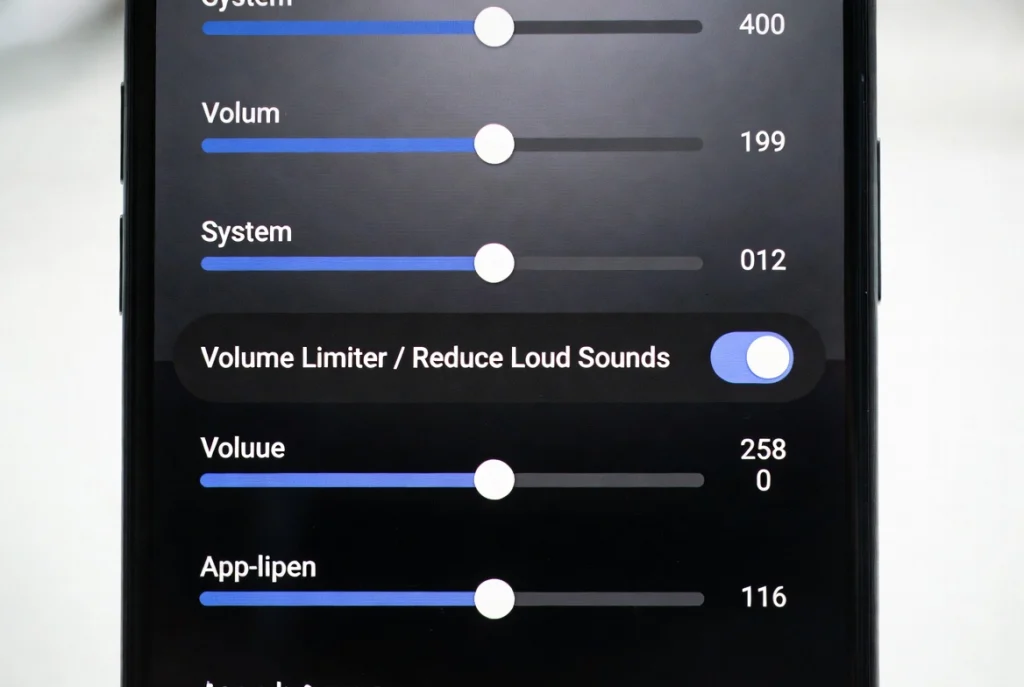
Today’s devices have a series of nested volume layers: device system volume, per-app volume (e.g., for Spotify/YouTube), and “safe listening” caps. Now if any of these are down everything will sound quiet–even when the main slider is cranked up. On iOS, it has Headphone Safety (Reduce Loud Sounds). A number of Android phones have a Media Volume Limiter. Windows and macOS manage per‐app mixes behind the scenes. The final output is bottlenecked by any one limiter.
Bluetooth’s Limitations on Sync and Codecs
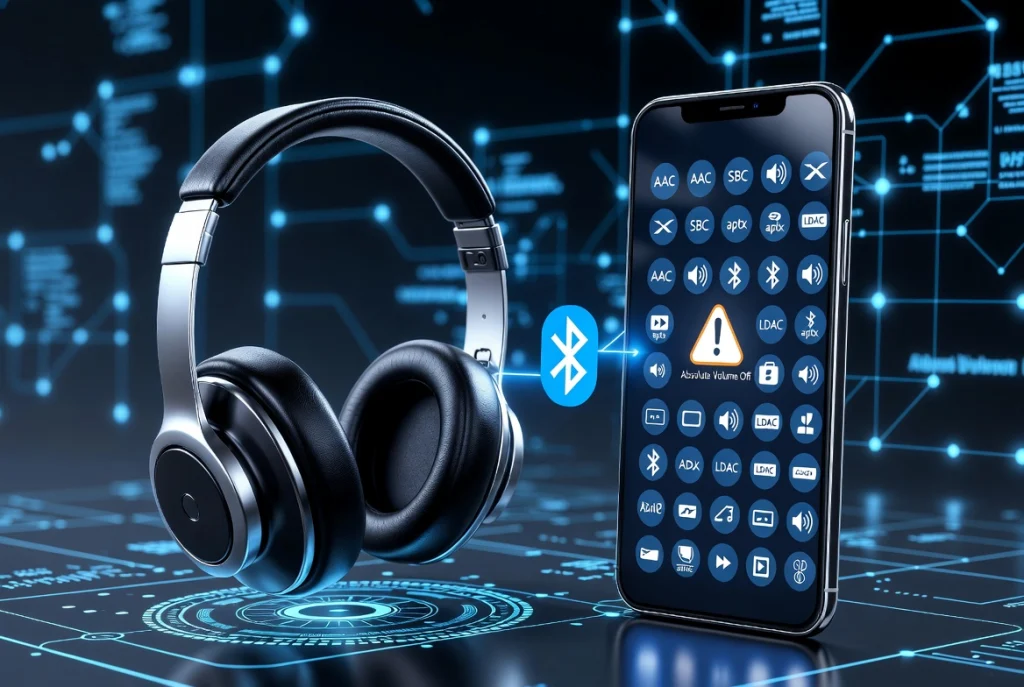
On wireless headphones, they have their own volume, as well as whatever is driving them (your phone/computer). If “Absolute Volume” desyncs (a common issue for certain Android/PC combos), your device may be high while the headset is low. Plus, the various Bluetooth codecs (SBC, AAC, aptX, LDAC) have different volume levels and efficiency. Volume can sound lower when gadgets resort to using a bland codec.
Build-up, leaky gaskets and loose plugs
3, a few lint grains in 3.5mm jack or earwax on the outlets of earpieces may interrupt sounds or lead to channel drop. For over-ears, any headphone with squashed pads can lose its seal, thus bass and overall volume. IEMs are played at high volume IEMs leaking air from having the wrong size tip causes low to form, which kills perceived volume.
Impedance/sensitivity mismatch
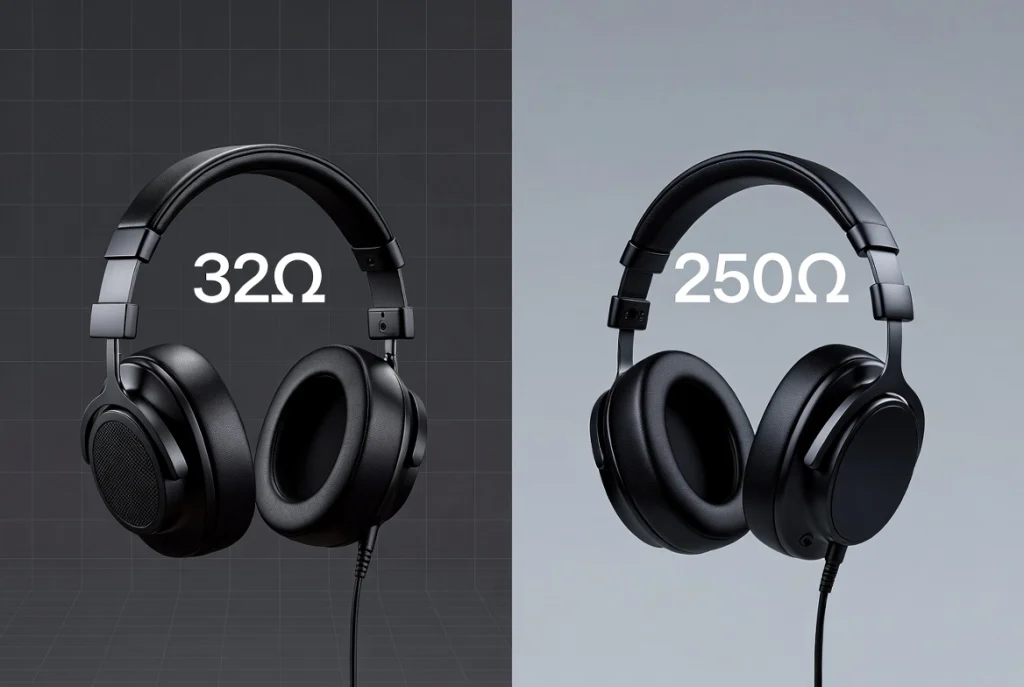
High-impedance headphones (e.g. 150 – 600 ) or low-sensitivity models require more voltage/current than a phone or a thin laptop can supply. Result: they play, but softly. These are Interface/DAC/Amp cans. Et vice versa, des écouteurs rapides à 16–32 avec une sensibilité élevée sonneront bien plus fort sur le même appareil.
Battery, firmware and driver gremlins
And, yes, some wireless headphones do reduce output when the battery drains to avoid distortion. It could also be firmware bugs or old PC audio drivers that nerf volume. The video output should work normally again after a fresh reboot or update.
App and EQ process battle
“Loudness equalization”, virtual surround, crossfeed or an aggressive EQ can all ruin headroom. Stack multiple effects (player EQ + system effect + headset EQ) and you can unknowingly reduce gain before the driver.
Wear and tear
A bent plug, oxidized termination, worn out cable at the y-split, or a moisture exposed driver can all decrease level and/or add scratchiness. Pads and tips aging out will also decrease effective volume since the acoustic seal is no longer there.
How to troubleshoot the issue step-by-step
Act in sequence first the quick wins, then deeper checks where necessary.
Step 1: Check sources and authentication Configuration of sources should match in all three servers for NFT type steps on both target volumes.
- Play a known-good, loud reference (local file or streaming from test track).
- Turn on system volume and app volume. Whether it was on Windows or macOS, I would open the volume mixer and verify that the application in question was set to 100%.
- On iPhone: Settings → Sounds & Haptics → Headphone Safety → “Reduce Loud Sounds.” (You can turn it off or tweak the setting.)
- Android: Go to settings (Developer Options) and search “Volume limiter” or “Absolute Volume” within the menu, then toggle as necessary.
- Test an alternate app (YouTube versus Spotify) to factor out per-app caps.
Step 2: The device vs. the headphones (1 minute)
- Try the same pair of headphones on another device (phone, laptop, tablet).
- Loud there? It is your original device.
- Quiet everywhere? Focus on the headphones/cable/tips.
STEP 3: Reseat and clean (3–5 minutes)
- For wired: Unplug and firmly reinsert; gently twist. Inspect plug for bends.
- Use a puff of air and dry, soft brush to clean out the jack.
- For earbuds: Clean the nozzle mesh; Replace or clean silicon tips (completely dried before use).
- For over-ears: Check the pads; if they’re flat or peeling, replace them to re-create that seal and recapture that bass.
Step 4: Reset Bluetooth and see codec (3-5 minutes)
- Unpair/Forget the headphone & Reconnect / Pair again.
- Turn off auto-connect on any other devices to prevent them from grabbing control.
- In developer/sound settings, turn on “Absolute Volume.”
- Update the headphone firmware in your brand’s app.
- If possible, force a higher-quality codec (AAC/aptX/LDAC) on devices with support for it.
Step 5: Eliminate software processing (2–3 minutes)
- Turn off all EQ/effects (same app/player, OS sound panel, headset app).
- If on Windows: Sound → Device properties → Enhancements (or Advanced), disable loudness equalization/virtual surround for the test.
- On macOS: Look in Audio MIDI Setup for strange formats or volumes that are too low.
Step 6: Determine power requirements (2 minutes)
- Consult your headphone’s impedance and sensitivity.
- If ≥80–100 Ω or sensitivity pocket) and don’t kink your cable, USB-C will be much happier.
- Keep firmware/OS updated.
Step 7: Check the hardware condition (3–5 minutes)
- If your computer does not work, please check whether there are defects on each of hardware components.
- Wiggle/move the cable up near the plug and y-split. Crackles or one-ear dropouts = bad cable.
- If your model has a removable cord, try switching it. it’s the cheapest repair.
- For wireless, measurements made at full battery. Some models have maximum SPL capped when powered by battery.
Step 8: Be smart with EQ gain (optional).
- If all is well and you find that you still need “more,” try a little preamp gain (1 to 3 dB) or modest EQ lift (3 to 6 dB) in the presence region (2–4 kHz) for articulation.
- Don’t overdo the stacking; look out for clipping. Your ears should never be fatigued.
Step 9: Make the decision: repair or replace
- Try before you give up– replace pads/tips and cables first – they restore loudness cheaply.
- If your driver gets unbalanced or distorted at lower listening levels, or perhaps water damaged, it may be time to replace.
Step 10: Prevent the next dip
- Good monthly clean (make sure to keep those buggers and store that IEM case > out of your pocket) and watch any tight bend in a cable.
- Keep firmware/OS updated.
- Match gear to use case: efficient, low-impedance sets for phones; higher-impedance studio cans paired with a proper DAC/amp.
When to Fix and When to Replace
Not every headphone problem deserves a funeral, let’s be honest. But every so often, a plain ol’cleaning or cable swap will wake them back up again. Other times, though, you’re better off an admitting it’s time to say goodbye and upgrade to a new pair. The trick is in understanding when the fix is worth it and when a replacement makes more sense.
When It’s Worth Fixing
If your problem is minor, or connection and settings related, then it’s easy and cheap to repair.
a. Speaker Grille Dirty or Clogged
Dust, lint and earwax are just some of the smallest bits that love to clog up the tiny speaker holes in earbuds or mesh in over-ear headphones. Gently clean with a soft brush, toothpick or compressed air to refresh full volume and clarity. This remedy is free and takes only a few minutes.
b. Loose or Dirty Jack Fit
A poor connection can cause your headphones to sound muffled or too quiet. Cleaning out the port with a soft cotton swab or pushing the plug back in firmly will usually clear it. Alternatively, if you have a wired pair of headphones with detachable cables breaking it might just mean replacing the cable for a cheap and easy fix.
c. Firmware or Software Issues
If your Bluetooth headphones don’t sound up to snuff, you’re in luck, they just need a good tune-up. And that’s nothing unlikely if your drivers went berserk after an upgrade or software update (factory defaults for the win). If that doesn’t fix it, try resetting the headphones, updating your driver or reinstalling the manufacturer’s app. Many “hardware problems” are just simple software bugs.
d. Pad and Tip Replacement
If the earpads or eartips are aged and lose their elasticity, then it will affect the effect of noise cancelling by generating plugging ears. worn out headband can affect noise cancelling and decrease fit. Replacing these parts is cheap and will immediately increase the amount of comfort bone conduction will offer you, as well as sound. It’s like plastic surgery for your headphones.
e. Low Battery Performance
If it lowers when your wireless headphones are close to dying, it’s working as intended a lot of devices are designed to save power in this manner. Occasionally, a full charge could bring back sound. If the problem occurs once in a while, you may not need to replace it just yet.

When It’s Time to Replace
Even when cleaned and reset, there are times the pond will still not work. Here’s how to know when to throw them in.
a. Continuous Changes in Volume, Gradually Adding or Canceling Sounds
If you still do not get sound even after cleaning, and connecting it to other devices and checking the cables then the driver of internal speakers might be at fault. The driver eventually wears out, which means that it can no longer move to produce proper vibration: This results in not only poor volume but also uneven frequency response. Replacement is the only fix.
b. Cable or Plug Damage
Wires breaking either inside their jacket at the jack, or that are constantly twisted, pulled and bent can lead to a permanent loss of channel – or just weak sound. If the cable isn’t something that can be removed and replaced, some repairs can run higher than what it would cost to buy a new set. You should just replace in that case.
c. Damaged Headband or Earcup Assembly
If the headband or hinge of your old pair is cracked, held together with tape or epoxy, then it’s time to move on. Fit and comfort suffer when the structure breaks, and sound quality does too as the earcups no longer seal.
d. Old Age and Wear
Headphones age like everything else. The foam gets stiff over time, the drivers get weaker, and the sound signature changes. If you’ve had the same pair for 4–5 years, and you notice reduced clarity or one side being more weighed down than the other, it’s an organic sign that your muffs have aged out.
e. Compatibility Issues
High-impedance studio cans might not get loud enough from your phone no matter what you do. If you aren’t going to be using a DAC or amp, swapping them with low impedance, high sensitivity headphones will immediately address the loudness problem.
In short: Fix when the issue is outside your body, and replace when it’s inside.
Check Price on Amazon
Insider Tips to Prevent This from Happening Again
Once your headphones sound fantastic again (or you’ve replaced them), it’s all about establishing good patterns. An ounce of prevention is worth a pound of cure.
Keep Them Clean
Regularly wipe down earcups, tips and headbands with a dry microfiber cloth. For in-ears, wash the mesh very gently once a week, if you use your in-ears on a daily basis. A little cleanliness goes a long way to prevent not only muffled sound but also bacteria that could harm your ears as well.
Store Properly
Stop scrunching or tangling your headphones up in your backpack. Stow it in a protective case or pouch at all times. Over time your cables and internal wiring suffer from pressure and bending.
Avoid Moisture and Sweat
Water and electronics don’t mix. All “water-resistant” models can rust from the inside if they are exposed to sweat or humidity too long. After you work out, wipe them dry and let them air out before you put them away.
Mind the Cable (if Wired)
Don’t twist the cord tightly around your phone or player. Internal wires near the plug are stressed by this. Instead, opt for slack loops or a cable organizer. Disconnecting requires pulling the plug, not the cord.
Charge Smart (for Wireless Models)
Try not to let your battery reach 0% on a regular basis. Lithium-ion batteries have a longer lasting charge if cycled between 20–80%. And do not charge it overnight, overheating the battery can reduce its life.
Update Firmware and Drivers
Manufacturers regularly update headphones to have better volume capacity, connections, and battery life. Visit their app about once every few months to keep up with the riddle.
Use Appropriate Volume Levels
Listening at max volume can lead to hearing damage, as well as put extra stress on your headphone drivers. Target 70-80% of full volume with extended listening. If you don’t have enough max volume just get an external DAC or amp instead of using it to its full potential.
Rotate Between Pairs
If you are using headphones for hours a day, try switching between two pairs. This also allows the earpads to breathe and reduce its life significantly.
Protect From Extreme Temperatures
Do not leave headphones in your car on a hot day, especially if the car is parked in direct sunlight. Temperature fluctuations can lead to condensation inside drivers and erode materials.
Listen Smart, Not Loud
Your ears are in on it as well. Listening fatigue may cause even normal volumes to sound low. Take brief breaks for your ears every hour, and have them checked if you perceive persistent deadness or imbalance.
Frequently Asked Questions
Why are my headphones quiet all of a sudden?
Volume limit or dirty connection.
How do you make them louder without damaging them?
Tweak the settings or plug a DAC/amp into one.
Why do one side of the speakers sound weaker than the other?
Damage to cable or poor seal in ear.
Do Bluetooth headphones sound softer?
Yes, due to codec compression.
Is there low volume due to software bugs?
Yes, update drivers or firmware.
Do I need to clean my headphones often?
Yes, monthly cleaning boosts sound.
When do I need to upgrade my headphones?
The distortion and loss of balance in the drivers.
Click the button below to buy from Amazon Final Thoughts
Hush headphones don’t necessarily signal they’re broken most problems are due to common culprits like dirt, volume limits or mismatched gear. With the help of regular cleaning, smart usage and thoughtful listening (as well as good luck) you should be able to extend the life of your headphones for years. Take care of your audio gear, and it will give you the sound you like hearing, too.