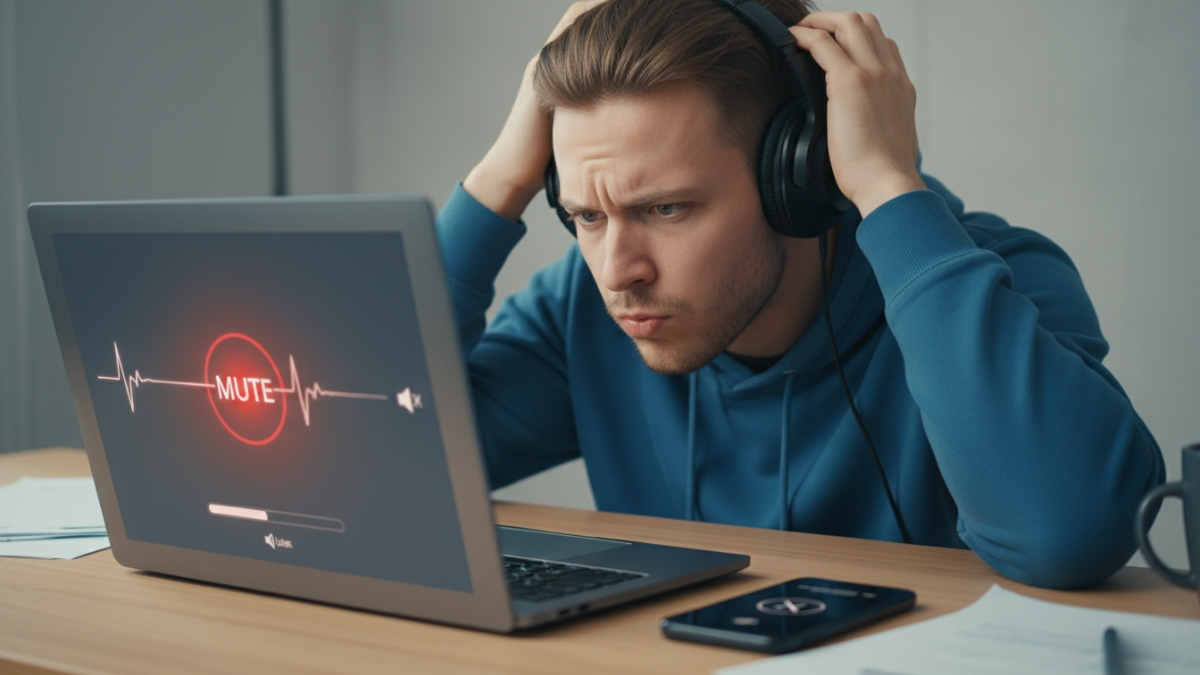
We’ve all been there usually at the most embarrassing time. I’ll be sitting down for a meeting, a workout, a flight, or honestly just trying to listen to a podcast in peace, and then… silence. No sound. Not even a crackle. It’s the exact moment when I start asking myself, “why aren’t my headphones working?” Because it seriously feels like my earbuds decided to play hooky without giving me any notice.
If you’ve found yourself here, it’s likely that you’re asking the same thing I have muttered to myself too many times: “Why aren’t my headphones working?” And believe me, I’ve said that out loud to myself more times than I care to remember.
But I’ve fixed enough headphone problems over the years mine, my friends’, family members who think their devices run on “magic air” still that I built myself a pretty solid troubleshooting playbook. Today I’m unpacking that entire process for you to learn the simplest, clearest way.
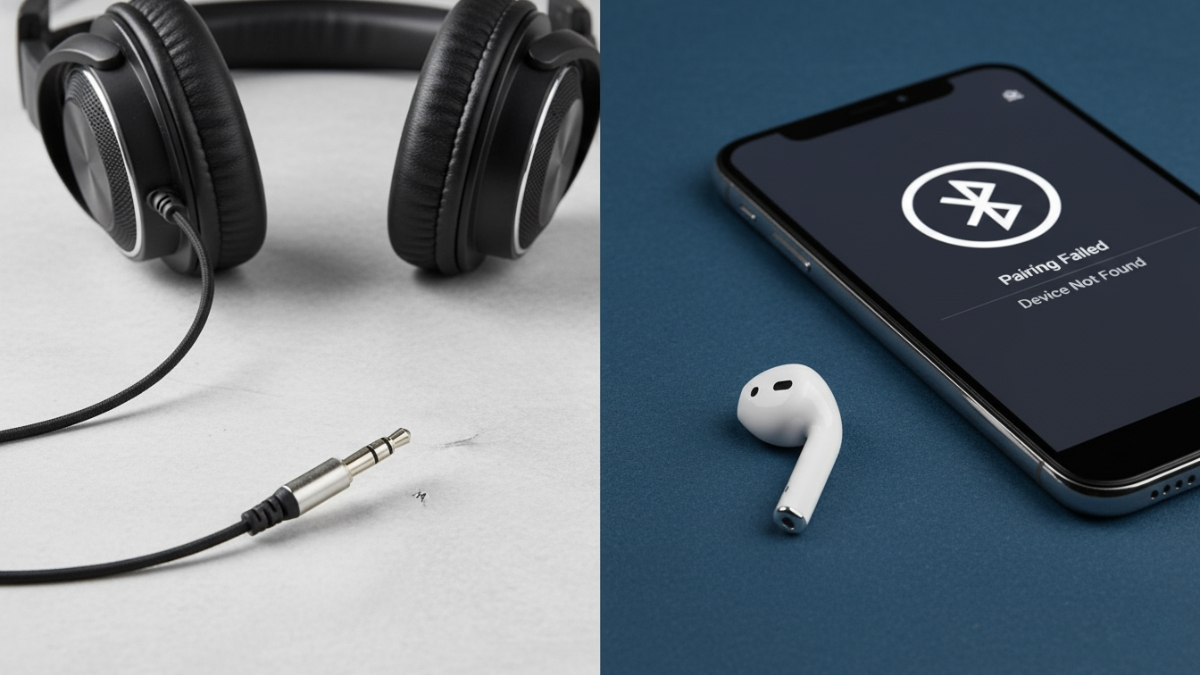
Why Do Headphones Stop Working?
First, here’s what typically goes wrong. Headphones are not complex devices, but there’s still a good amount that can go wrong with them.
Loose or Improper Connection
This is the overwhelmingly dominant one. For wired headphones, the plug may not be fully seated. A very small space will lead to total silence or one-sided sound.
For wireless earbuds, the connection may have changed to another device, without your being aware of it. Bluetooth is convenient, but it can be a little sneaky.
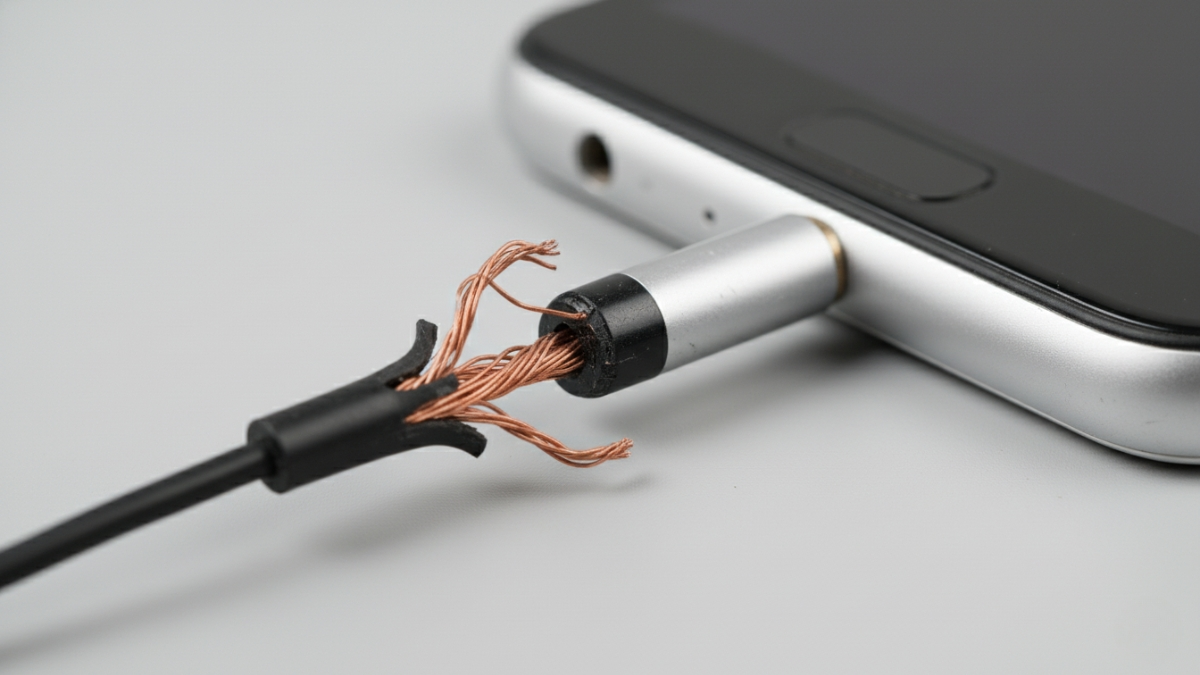
Typical symptoms:
- No sound
- Sound only from one side
- Static or crackling
- Unexpected disconnection
Wrong Audio Settings
Sometimes there is sound, but it’s barely audible. If your audio is extremely low even at max volume, this guide on why headphones are too quiet explains all the common causes and fixes.
Now and then, your device just chooses the wrong output.
This occurs after I update, change an app, or in between connecting more than one device.
Common issues:
- They use speakers instead of headphones for output
- Volume limiter or mute switch is on
- Bluetooth audio routing is incorrect
- App-specific audio settings are muting sound
Physical Damage
Let’s face it we’re not all delicate with our headphones.
They get bent and dropped and pulled and sat on or shoved into bags.
Common signs of damage:
- Loose or bent plug
- Frayed cable
- Damaged ear cups
- Broken headband
- Sound fades in and out when you jostle the wire
Wired earphones break more frequently because of the cable damage.
Wireless options can break on the inside, and battery problems aren’t unheard of.
See Details on Amazon

Software Glitches
The issue might be the phone, laptop or tablet not the headphones.
Possible software issues:
- Bluetooth driver errors
- Audio service crash
- Buggy OS update
- Conflicting apps
- Corrupted Bluetooth profile
Many of these can be fixed with a simple reboot.
How to Speedily Determine if Your Headphones Are at Fault or Not
Before you attempt any of these more complicated fixes, do these two quick checks.
They save a TON of time.
Test 1: Use the Headphones on another device
In short: Just plug them into another phone, laptop or tablet.
If they work there → your device = something’s wrong.
If it does not work anywhere → Your headphones are at fault.
This test alone reduces the mystery by half.
Test 2: Use Another Set of Headphones on Your Device
Borrow a pair if needed.
If the second pair works → your original headphones are busted.
If you encounter the issue as well with the second pair → the device is guilty.
These two tests will show you exactly what to repair.
Step-by-Step Fixes for Wired Headphones
Wired headphones are old-school, though unfortunately their reliability isn’t always on par with the time-honored history of cabled audio.
How to Fix the Most Common NJ Transit Problems
Step 1: Check the Plug
Make sure it’s fully inserted.
The plug often appears to be connected, but it isn’t seated correctly.
Try taking it out and pressing it back in firmly until it clicks.
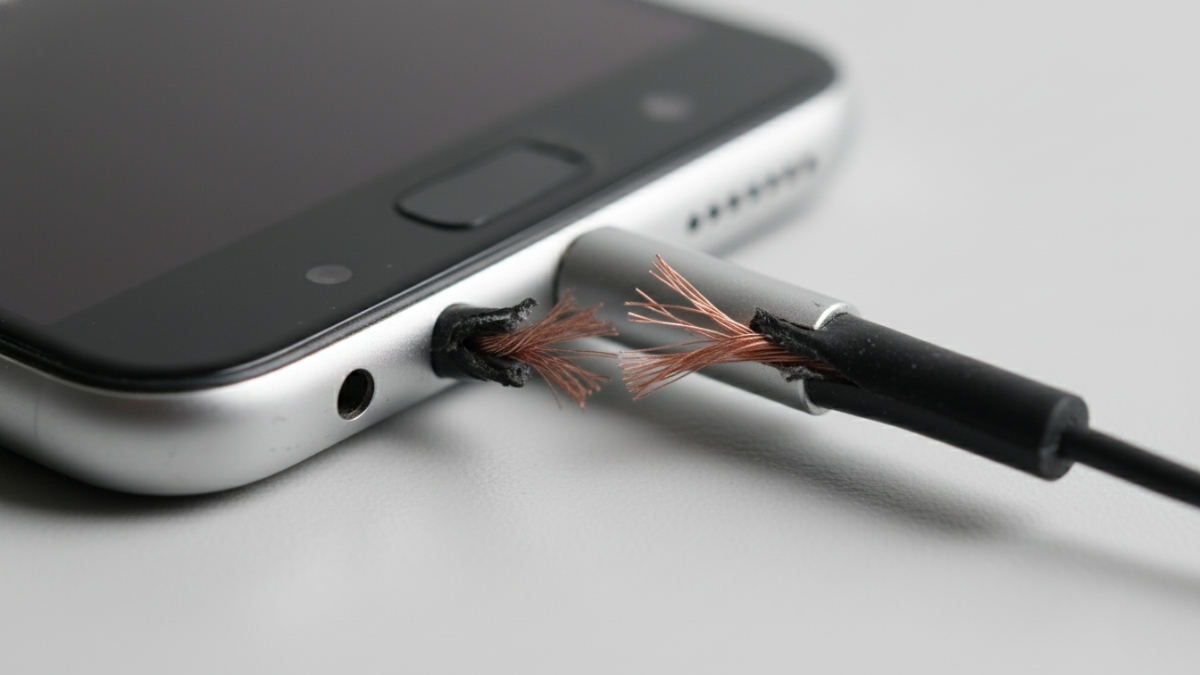
Step 2: Check the Cable for Damage
Reach in and feel the cable.
If the sound cuts in and out or is crackly when you play around with the wire, then this is an indication that there has been damage to the copper inner wires.
In such a case, there may be a possibility of repairing that close monitor but generally it is simpler to replace.
Step 3: Remove Dirt or Debris from the Headphone Jack
Dust or a deposition of fluff can get the way.
Try:
- A wooden toothpick (gently)
- Compressed air
- A soft brush
Do not use metal tools as they can scratch the port.
Step 4 – Test Without Adapters
If you’re using a USB-C or Lightning adapter, the adapter may be malfunctioning.
Try the earphones out on another device which has a standard headphone jack (if possible).
Step 5: Check Device Settings
On your phone or computer check:
- Headphones are chosen as the output device.
- Volume limit is off
- EQ or FXs are not a problem
- Audio is not being grabbed by a Bluetooth device
Sometimes the fix really is just one setting.
Solutions for Wireless (Bluetooth) Headphones Step-by-Step Fixes
Wireless headphones are terrific until they won’t sync or randomly switch devices. Here’s how to get them back in working order.
Step 1: Restart Bluetooth
This resets the connection and clears any brief problem.
Step 2: Reset the Headphones
Most problems with Bluetooth headphones can be fixed after a reset.
Usually the reset process involves:
- power + volume actions as well
- or 10-15secs holding the pairing button.
Look at the manual for your model.
Step 3: Unpair and Pair the Device Again
Sound can get corrupted and blocked by older Bluetooth data.
Steps:
- Open your phone or computer Bluetooth settings
- Tap your headphones
- Choose Forget This Device
- Reconnect fresh
This resolves syncing issues 80% of the time.
Step 4: Charge the Headphones
Low battery can cause:
- Weak Bluetooth signal
- Sudden disconnects
- Audio dropouts
- Buttons not responding
Ensure they’re charged up.
Step 5: Turn off Bluetooth on Devices Around You
At times, headphones auto-pair with a device for example:
- A laptop
- A tablet
- A TV
If you’re connected elsewhere, your phone won’t make sound.
How to Troubleshoot Sound Issues on Windows, Mac, iPhone, and Android
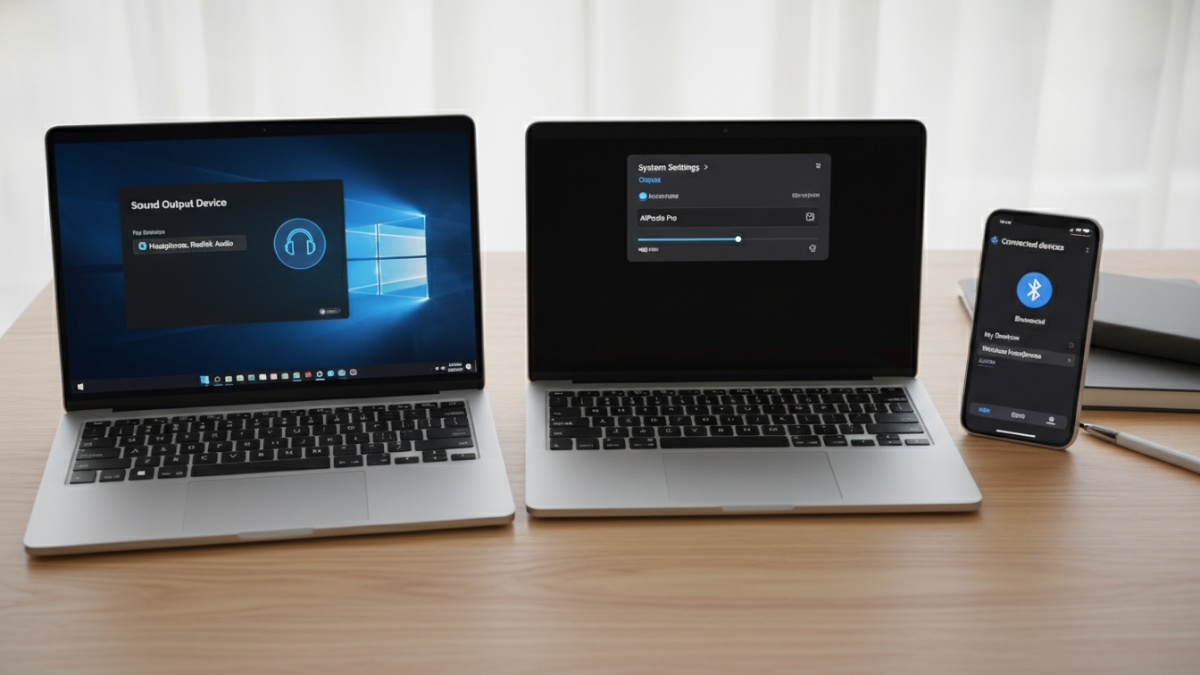
Sound issues can crop up on any device; and they may even pop up even if your headphones aren’t the problem. I’ve encountered the problem on Windows laptops, MacBooks, iPhones and Android phones and the thorn in my side is that each device acts a little differently. The good news? Once you learn the typical culprits and solutions, troubleshooting becomes a lot more straightforward.
I’ll guide you through the best troubleshooting for each type of device, follow that up with hidden issues you might not expect and end with how to tell whether it’s time to repair, reset or replace your headphones.
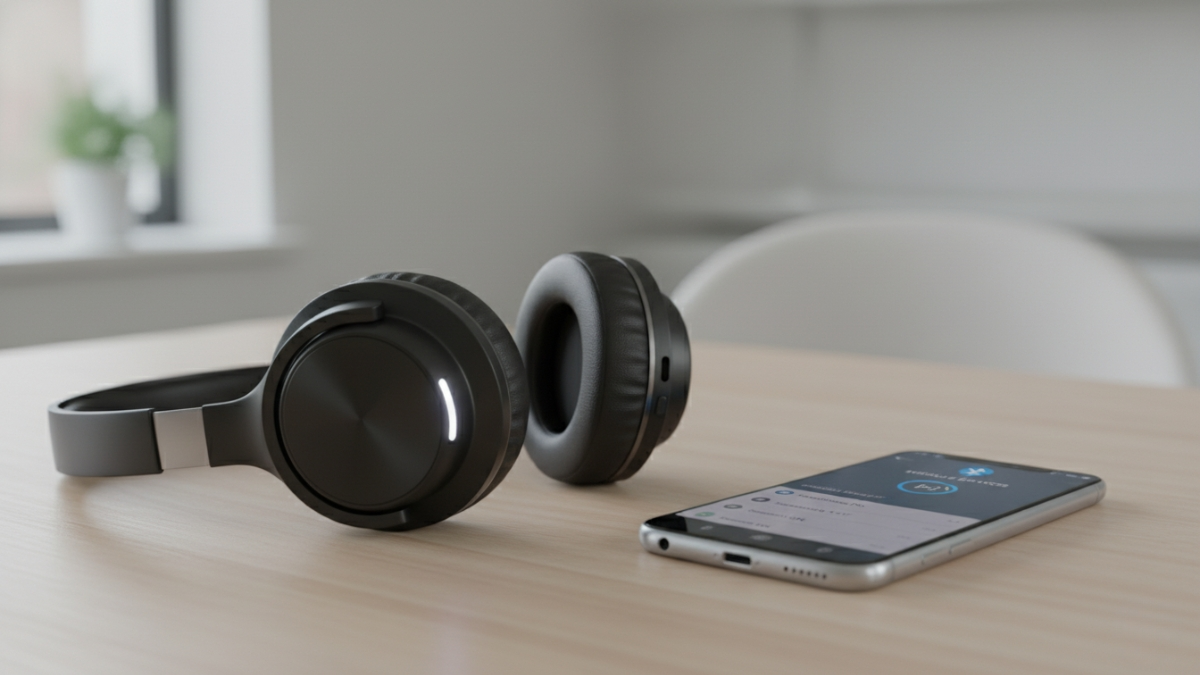
What to Do If the Sound Malfunctions in Windows
Windows is a bit more freeform and powerful, but sometimes its audio settings can be confusing. The vast majority of headphone problems stem from Windows picking the wrong output device or a driver getting in the way.
Pick the right Output Device
This solves most Windows audio problems.
Steps:
- Right-click on the speaker icon in the Taskbar
- Click Sound Settings
- Under Output, select your headphones
Occasionally, Windows will switch to speakers or another device.
Check Volume Mixer
Apps have different volume controls.
Steps:
- Right-click the speaker icon
- Select Open Volume Mixer
- Check to see if your application (Zoom, Chrome, Spotify etc.) is muted
Audio Drivers Update/Reinstall
A bad driver can completely ruin sound.
Steps:
-
Open Device Manager
-
Expand Sound, video and game controllers
-
Right-click your audio device
-
Click Update driver
If that does not fix it, attempt to Uninstall Device and restart your PC.
Restart Windows Audio Service
This is like restarting your audio system.
Steps:
- Press Windows + R
- Type services.msc
- Find Windows Audio
- Right-click → Restart
This hack has rescued me more than once.
How to Fix Sound Not Working on Mac
Macs are more reliable in this regard, but it can also be possible for audio routing on them to become confused.
Choose the Appropriate Output Device
Steps:
- Go to System Settings
- Click Sound
- Under Output, choose your headphones
On a Mac connected to Bluetooth or the internal speakers, output can occasionally get stuck using that.
Check Output Balance
Sometimes the balance slider is accidentally moved.
Steps:
- In the Sound menu, verify left-right balance in centered
Push it to one side and you’ll hear only through one ear.
Reset CoreAudio
The Mac version to more or less restart audio services.
Steps:
- Open Terminal
- Type: sudo killall coreaudiod
- Press Enter
Your Mac silences momentarily, and then audio resumes cleanly.
Check Price on Amazon
What to Do if iPhone Sound Is Not Working
I love my iPhones, but iOS updates and Bluetooth idiosyncrasies can lead to a cacophony of confusion.
Check the Output in Control Center
On occasion sound outputs to the AirPods or speaker, or Apple TV.
Steps:
- Also swipe down (or up for older models)
- Tap the audio output icon
- Select your headphones
Clean the Lightning or USB-C Port
The port can become filled with debris, which will kill wired headphone detection.
Use:
- A toothpick (gently)
- A soft brush
- Compressed air
- No water, no metal tools.
Turn Off Bluetooth for Wired Headphones
If you leave Bluetooth on, your iPhone may believe that you’re using a wireless device.
Disable Bluetooth and plug in your wired headphones again.
Restart iPhone
This solves a bunch of transient problems with audio routing.
How to Handle Sound Issues on Android
There are slight variations in where things are located under the settings menu, depending on which brand of Android device you own.
Check Headphone Mode
Occasionally Android gets “stuck” in headphone mode even if the headphones are long removed from the jack.
Restarting usually fixes it.
Reset Bluetooth Settings
This solves many wireless issues.
Steps:
Settings > System > Reset Options > Reset Wi-Fi, Mobile & Bluetooth
Check App Permissions
Some apps require audio permissions.
For example:
Settings –> Apps –> App Name –> Permissions, Allow microphone/audio access
Clear Bluetooth and Audio App Cache
Old cache can cause conflicts.
Hidden Problems Most People Don’t Notice
Sometimes the actual problem is hidden in plain view until you stare it down. Even if everything else looks good, these small problems can crack sound.
a) Dust in the Port
Connection can be blocked by minute dust, etc., especially at:
- iPhones
- Laptops
- Android phones
- USB-C ports
When the port is blocked, the plug does not seat fully.
Symptoms:
- No sound
- One ear only
- Crackling
- Device not detecting headphones
b) Damaged Ports
Ports Wear and break internally over time.
Check for these signs:
- Plug wiggles around in the port
- Sound cuts out with movement
- Device doesn’t recognize any headphones
If your charging port is loose or damage, you will need professional repair.
c) Software Conflicts
Apps can battle over audio output.
For example:
- Nor can you use mute, because Zoom might block sound for other apps
- Games may override audio settings
- Devices may auto-connect to unwanted Bluetooth items
Resetting the device works for these conflicts frequently.
d) Battery Problems of Wireless Headphones
If your headphones do power on anyway, a drained battery may result in:
- Choppy sound
- Disconnection
- Low volume
- Audio delay
Always test from full charge.
When To Rераir, Reset And Replace Your Headphones
A little knowledge can save you time and money. Here’s a simple guide.
a) When to Reset
Reset if you experience:
- Bluetooth connection issues
- Random disconnection
- Audio delay
- Buttons not responding
Almost all wireless headphones have a button combo reset.
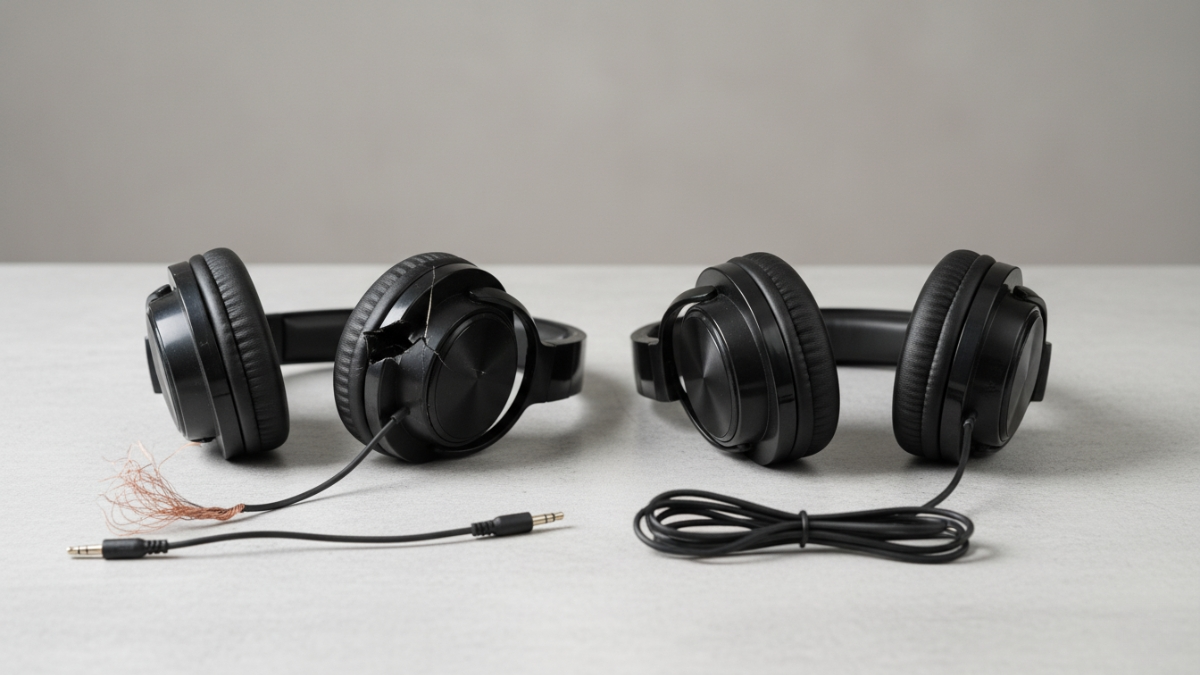
b) When to Repair
Repair is a good choice when:
- The cable is slightly damaged
- The ear pads need replacement
- The jack is loose but fixable
- Batteries can be replaced
Some headphone companies even offer replacement parts for those of us who are merely accident-prone.
c) When to Replace
If replacement is best for you:
- One speaker is completely dead
- The cable is torn internally
- The headband is broken
- Charging doesn’t work
- Sound is distorted permanently
- The port is damaged inside
And if repair costs exceed 50 percent of the cost of new headphones, replacing them is probably a smarter decision.
FAQ: Frequently Asked Questions
What would suddenly make my headphones stop working?
It is the loose connections or the incorrect settings which are mainly responsible for the same.
Why do my earbuds work on one device but not the other?
This could be due to your device settings or audio port.
Why is it only in one ear?
It is commonly the result of a bent cable or an incorrect balance setting.
How can I tell if my headphone jack is broken?
If you get sound dropout or the plug gets wiggle, likely the jack busted.
Why won’t my wireless headphones connect with Bluetooth?
Old pair data or low battery could prevent the connection.
My headphones power on but no sound- what should I do?
Confirm the output settings and try pairing again (also turn off or reset the device dutring trying, confirm that just closing it down does nothing).
When do I need to replace my headphones?
Replace when cables fail or one speaker completely dies.
Final Thoughts
Headphone issues are infuriating, but the good news is that most of them can be solved at home. Whether you’re on Windows, Mac, iPhone, Android or something else entirely, the reasons tend to fall into a few main camps: wrong audio setting; problematic connection resulting from a loose wire or jack, dirty port or broken software.
By spending a few minutes troubleshooting your headphones on another device, cleaning the ports, resetting Bluetooth or verifying you haven’t reached your TV’s volume limit, you can save yourself from needing an unnecessary repair or purchasing new ones prematurely. If you’re wearing wired headphones, watch the cable and plug, too. If you’re relying on wireless earphones, ensure the battery and Bluetooth settings are in good working order. And if those problems keep bouncing back, it could be not the headphones but your device sending out an cry for help. It’s not just the purpose of “fixing it once.” It is to figure out what caused the problem so you can avoid having to solve it again.
Click the button below to buy from Amazon