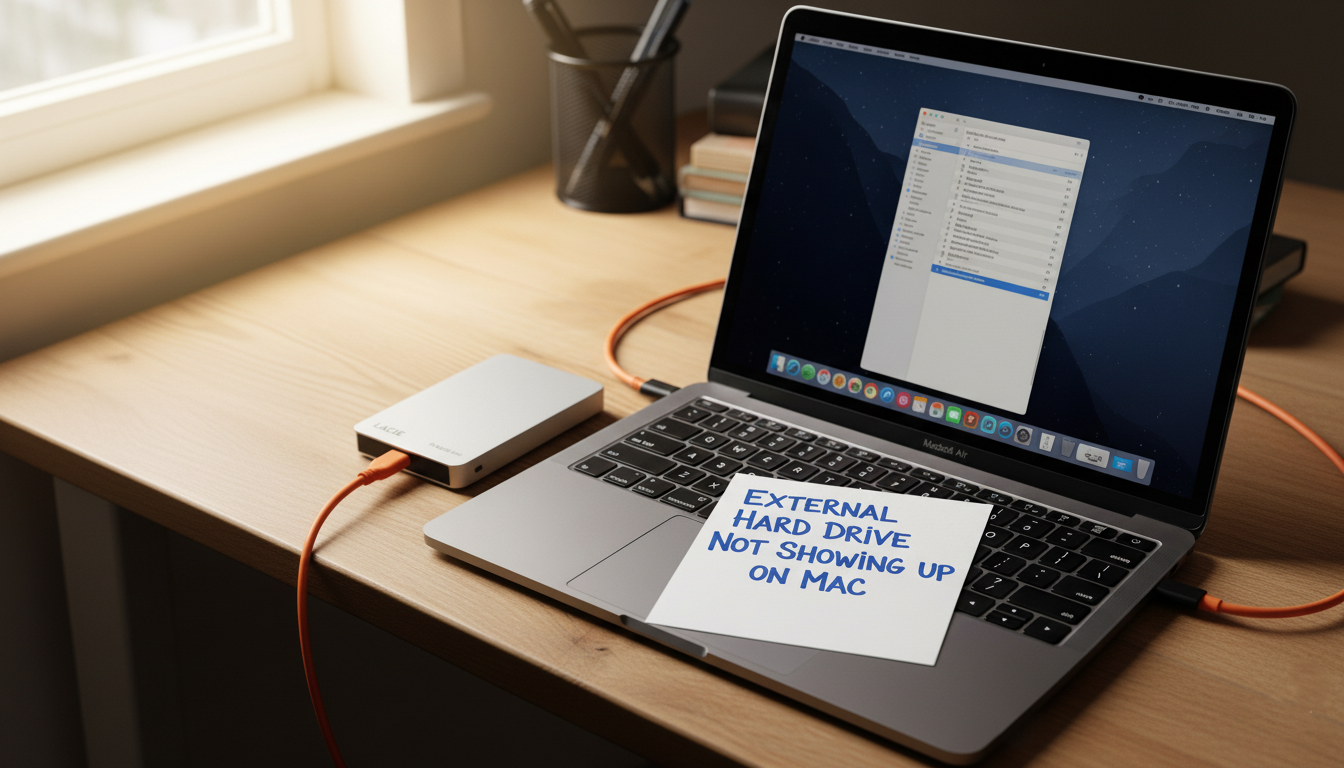
It’s a situation is that familiar to most of us: you plug into your Mac the external hard drive on which you intend to back up files or otherwise copy your data, only to find…nothing. No notification. No icon in Finder. It’s as if your drive is on holiday. If you’re not sure why your external hard drive isn’t showing up, you’re in the right place.
In this guide, I’m going to walk you through a bunch of basic troubleshooting steps that can get your external device back in action. I’ll explain the potential reasons behind it, and show you how to solve the problem according to my own understanding. Let’s get started!
Table of Contents:
Why Your External Drive Isn’t Showing Up?
Quick Fixes You Can Attempt First
How to Test the USB Port and Cable
Checking Your Mac’s System Preferences
Using Disk Utility to fix the issue
If the Drive Appears but Does Not Mount
Is It a Hardware Fault? Testing Your External Drive
Professional Help: When to Call a Professional
Tricks to Prevent External Drive Problems on Mac in the Future
Why Won’t My External Drive Appear?
There are various reasons for why your external device may not be visible If your external device does not appear, here are a few things to consider. From cable problems to software settings, here’s a list of those common tangibles and intangibles:
Connection Issues: A loose connection is one of the most common causes. Either the USB cable isn’t working or the port you’re using is faulty.
Power Supply Problems:– Some external drives need more power than a USB port can offer. If the drive doesn’t include a power supply, it might not work properly.
Disk Formatting: If the external hard drive’s disk is formatted in a way that macOS doesn’t understand (for example, NTFS), your Mac will not be able to see it.
System Preferences: Some users are experiencing the issue because macOS is not configured to automatically display external devices in Finder and others report software conflicts.
Drive Corruption: The drive can sometimes be corrupt meaning it will not mount in the appropriate way.
Now that you have the possible causes for it, we are going to look into some quick fixes that could end up saving you a headache.
Quick Fixes You Can Try First
Before you start worrying about more advanced solutions, let’s try a few that are easy to test and won’t take too much of your time.
Restart Your Mac
It’s an easy one, but it’s the basic thing I reach for when I don’t see some outside device. You may also try restarting your Mac to clear up any minor software issues that could be causing your drive not to show up.
Try a Different USB Port
It is not all USB ports are equal. Attempt connecting your external drive to another port on your Mac. If you have a MacBook with USB-C ports and your drive uses a USB-A interface, you may need an adapter.
Test Drive on Another Computer
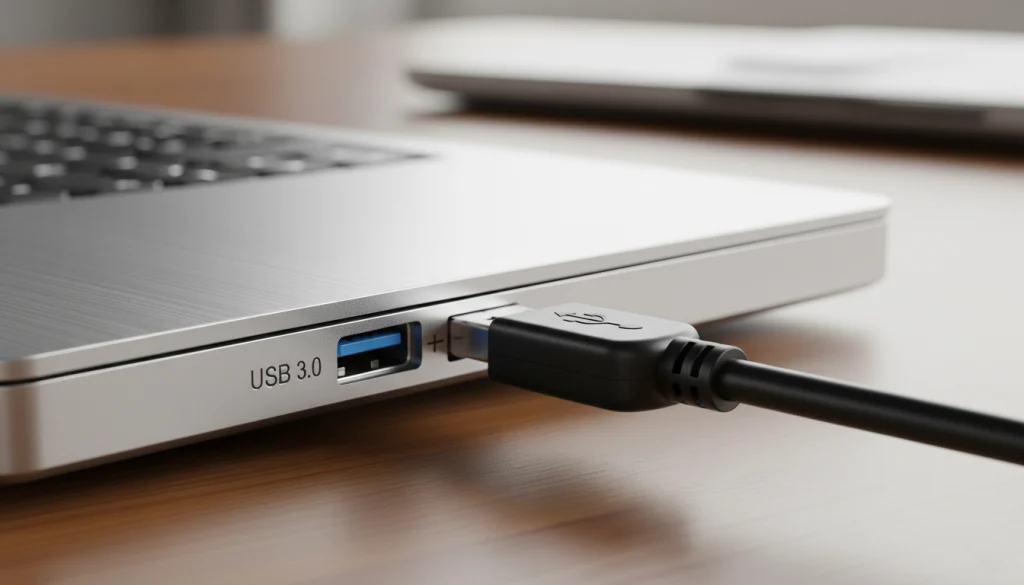
How can I see if the USB port and cable are good?
Sometimes, a loose connection is what’s preventing your Mac from recognizing an external device. This is how you can test it.”
Look at the USB Cable: Over time, cables can wear out even when they appear to be in good condition. Check for visible signs of wear or fraying s. If you notice anything unusual, it may be a bad cable.
Try Another Port: Connect your external drive to another USB port on your Mac. Ports fail over time and moving to an new one may fix the problem. And, if possible try a port directly connected to the motherboad, for better connection.
Check your Power: Some external drives require more power than a USB port can provide, particularly larger or faster (high-speed) drives. If your drive has an optional power supply, swap the power supply to see if it is the problem.
Checking Your Mac’s System Preferences
If you drive still won’t show up, there’s an issue with your Mac settings. Let’s double check everything is set up right.
Check Finder Preferences
So if you have an external device plugged in, but it’s not showing up in the Finder, you may need to adjust your Finder settings:
Open Finder.
Go to Finder > in the top menu and choose Preferences.
General Check External disks Now you can choose to boot from external disk and save time while avoiding hassles. This setting will make sure external drives show up in the Finder sidebar.
Check System Information
If your Mac is seeing the drive in System Information, but not listing it in Finder, that’s a good sign — it means your Mac is acknowledging the connection. Here’s how you can check:
Click the Apple icon in the top-left corner and click About This Mac.
Click on System Report, and then select USB.
When your external drive shows in the list but not on the desktop, then there might be a problem with mounting or formatting.
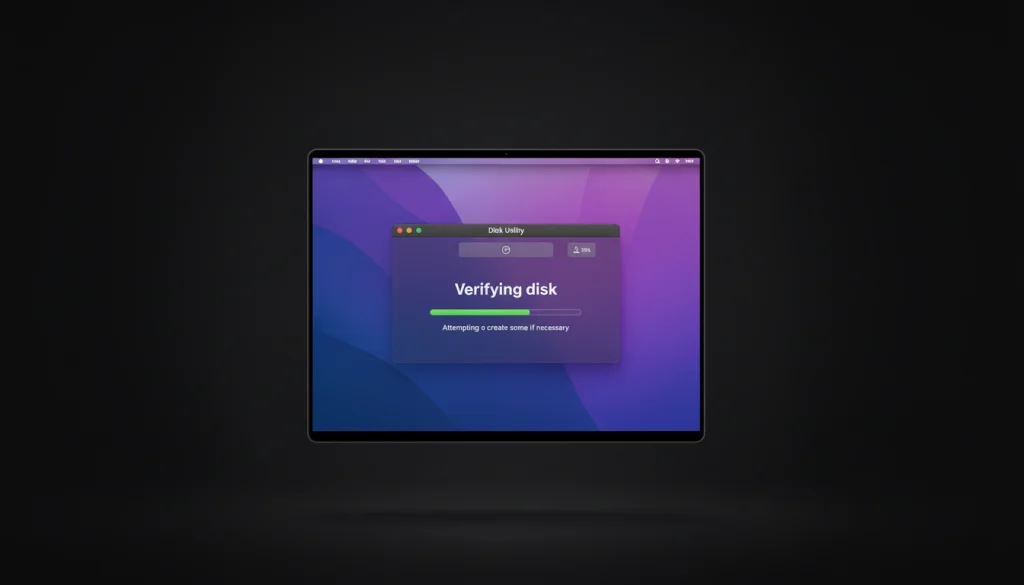
Resolving the Issue with Disk Utility
Now, let’s get into Disk Utility itself. This amazing tool enables you to diagnose and fix external drives not recognized. Here’s how you can use it:
Open Disk Utility: Spot search it, or navigate to Applications > Utilities.
Find Your Drive: In the Finder sidebar, find your external drive in Disk Utility. It could be grayed out if not mounted.
Mount the Drive: If the drive appears, but is not mounted, click on mount at the top of your window. This should make it visible in Finder.
Run First Aid: If mounting doesn’t solve the problem, try running First Aid. This tool will check the external disk for errors and resolve them on its own. To do that, click on your drive in Disk Utility and choose First Aid.
Reformatting the Drive (if Needed)
If your external device still isn’t detected by your Mac, it’s possible that you have a disk format problem. Here’s how you can reformat it:
Choose the drive in Disk Utility.
Click the Erase button in the top of window.
Select a format that’s compatible with macOS. Mac OS Extended or APFS are fine for drives used exclusively on a Mac. If you’d like to use the drive for both Mac and Windows, select exFAT.
Caution: Reformatting your drive will erase all the data on it so please ensure it is backed up before proceeding.
When the Drive Appears but Doesn’t Mount
So you’re able to see your external drive in here, but it doesn’t actually mount. This is a frequently-asked question and you would follow the guidelines described below to address it.Of course, this can happen for any number of reasons — but don’t despair! There are things you can do to remedy the problem:
Try a Different Mac: If the drive works on another system, the issue may reside with your current one. This may be a software problem that needs to be further investigated.
Reset NVRAM/PRAM: If your Mac is not working with the drive properly, resetting the NVRAM/PRAM might help. To do this:
Shut down your Mac.
Then, turn it back on, instantaneously holding down Option + Command + P + R.
Hold it for 20 seconds, and then release. It resets the non-volatile memory and may fix the problem.
Is It a Hardware Failure? Testing Your External Drive
If none of those steps do the trick, it’s time to check for a mechanical failure and transfer your music library from your failing external drive to another one. Here’s how to test it:
Listen for Sounds: When you plug in your external drive, listen closely. Unusual noises such as clicking or grinding could point to physical damage in the drive.
Test on Another PC : Try plugging the device into another computer. IF it still doesn’t work, the drive might just be DOA.
Inspect for Damage: Examine the drive for physical damage. This may have been dropped or not used properly, and this could be causing internal problems that stop it from working as it should.
When to Seek Professional Help
Now, if your external hard drive still isn’t appearing on your Mac, it might be time to call in a pro. If the physical hard drive has crashed, a data recovery expert can help get back your files. If the drive is still under warranty, then contact the manufacturer for a new or repaired one.
How to Prevent External Drive Issues on a Mac in the Future
Now that your drive is hopefully operating again, here are a few to keep problems at bay in the future:
Eject correctly: eject your external drive properly by right-clicking it in Finder and selecting Eject. This will help prevent data corruption and safely unmounts the drive.
It is better to Buy Quality Cables: Get your self better cables that are durable. Cheap cables are more fragile.
Back Up Your Files: Use Time Machine or another backup method and make sure the weekly ransowmare defense (Mirror and Verify) is done regularly! Daily backups ensure reclamation in case of anything going wrong.
Keep macOS Updated: Ensuring your Mac has the latest software updates may offer bug fixes that could prevent external drive recognition issues.
Purchase the External Hard Drive at Amazon

Frequently Asked Questions
Why can’t I see my device on Mac?
There are many possible factors that could disrupt the programming of the capsules, for instance: defective (or underestimatively sub-quality) cables, malfunctioning USB port, unsupported file formats. It could also have to do with your Mac’s system settings, or there may be a power problem affecting it; if the device demands more power than can be provided through the USB port, that too would cause an error.
How can I verify that my Mac has recognized the device being plugged in?
To see if your Mac sees the device, open System Information by clicking on the Apple logo, choosing About This Mac and then clicking on System Report. The list of connected devices should appear in the USB section. If your external drive appears here but not in Finder, or can’t be mounted, there may be a problem with the hard drive’ partition or file system.
What can I do if my device does not appear in Findet?
First, restart your Mac and try a different USB port or cable. If that does not resolve the issue, open Disk Utility to see if you see the device there. You could try to manually mount it, or run First Aid to repair any file system errors. If the problem is a format issue, you can try reformatting the device.
Is it possible to retrieve my files when the device is not showing up?
Yes, you should be able to save your files. Especially if it is a mount/software issue. You may need to do professional recovery if the volume is physically damaged. Third-party tools for recovery are available which could possibly recover files from a nonfunctioning device.
What’s the proper way to eject my device from my Mac?
To safely disconnect your device, right-click it in Finder and select Eject, or drag its icon into the trash. This makes sure that all files are closed and the device is unmounted correctly so you don’t lose data.
My device is clicking, what should I do?
From a hardware problem you’re getting that clicking noise from your hard drive. If this is the case you will need to discontinue using the device, in order to prevent any additional damage. If you experience those noises, it’s advisable to bring your device to a pro data recovery service so they can salvage your files.
How can I prevent this from happening in the future to my external devices with my Mac?
In order not to have problems, always safely remove the device before unplugging it, get good quality cables and back up your data to a safe place. If you’re someone who works between Mac and Windows, format the drive in a cross compatible file system such as exFAT. Similarly to using high-quality cables, you can prevent bugs or compatibility issues by keeping macOS updated.
Conclusion
Your external can be recovered without a headache. It won’t take long to get it working again once you’ve followed the troubleshooting steps in this article. But whether it’s a minor cable problem or something more serious, you have the solution in your pocket to solve it now and avoid in the future.
For additional ideas on how to you might troubleshoot an external drive problem, see our article on recovering data from a Mac external drive.