Hard Disk Drive not installed Dell — We all have been there, the moment when that dreaded error shows up from nowhere. Moreover, if you’ve recently opened your Dell laptop and are greeted by this message, it is bound to send anyone into panic. I certainly did the first time I looked at it! But there’s no need to worry — you’re not alone, and it happens more frequently than you may realize. The good news? It’s completely fixable.
In this post, I will show you how to fix the hard disk drive not installed Dell issue. Whether you’re a tech neophyte or a longtime user, this guide can teach you the basics of troubleshooting, help prevent minor device issues from becoming major ones and get your system back up and running without ruining your day (or losing your stuff).
Now let’s dig into the reasons for the problem and some potential fixes.
What Is “Hard Disk Drive Not Installed”?
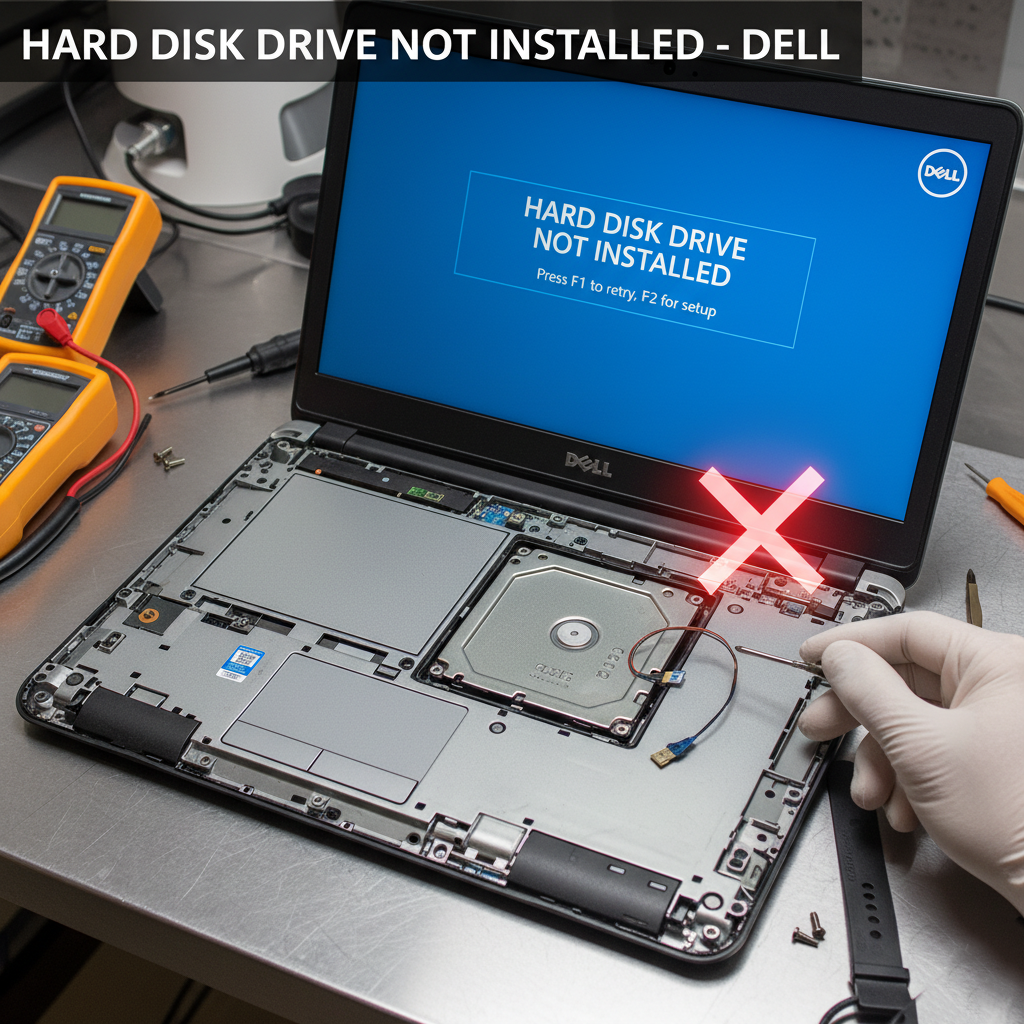
The “hard disk drive not installed” error is a notification from your Dell device that you’ll mostly see when the hard drive could not be detected by the PC. In other words, the OS has no idea which drive to use to boot Windows, or whatever other operating system you might be using.
It might pop up while your computer is restarting or a particular application, game, etc. trying to open on your system. Sometimes it’s indicated with additional codes, like “No Boot Device Found”, or “Please Insert Boot Disk”. These messages suggest that the BIOS (basic input-output system) can’t find a hard drive — something that is necessary for your computer to do just about anything in terms of loading and executing an operating system.
Common Causes of the “Hard Disk Drive Not Installed Dell” Error
This error popped up the first time I saw it and I panicked right away. But after doing a little digging, I discovered there are several reasons this could be happening:
Loose or Broken Connections– the most common cause is a disconnect between the hard drive and motherboard.
BIOS Settings Corrupted: Occasionally the hard drive not showing up in BIOS can be caused by a temporary problem with the BIOS.
Defective Hard Drive: If hard drive is defective or has gone bad, your system won’t be able to detect it.
Old Drivers: Sometimes old or missing drivers on the hard disk can cause it not to be recognized by the system.
System Updates: Sometimes, after a major system update (not necessarily an upgrade to Windows), the problem may crop up as updates can hinder your computer’s ability to detect the drive.
Now that we have a better idea what might be the problem, let’s troubleshoot your issue and get things working again.
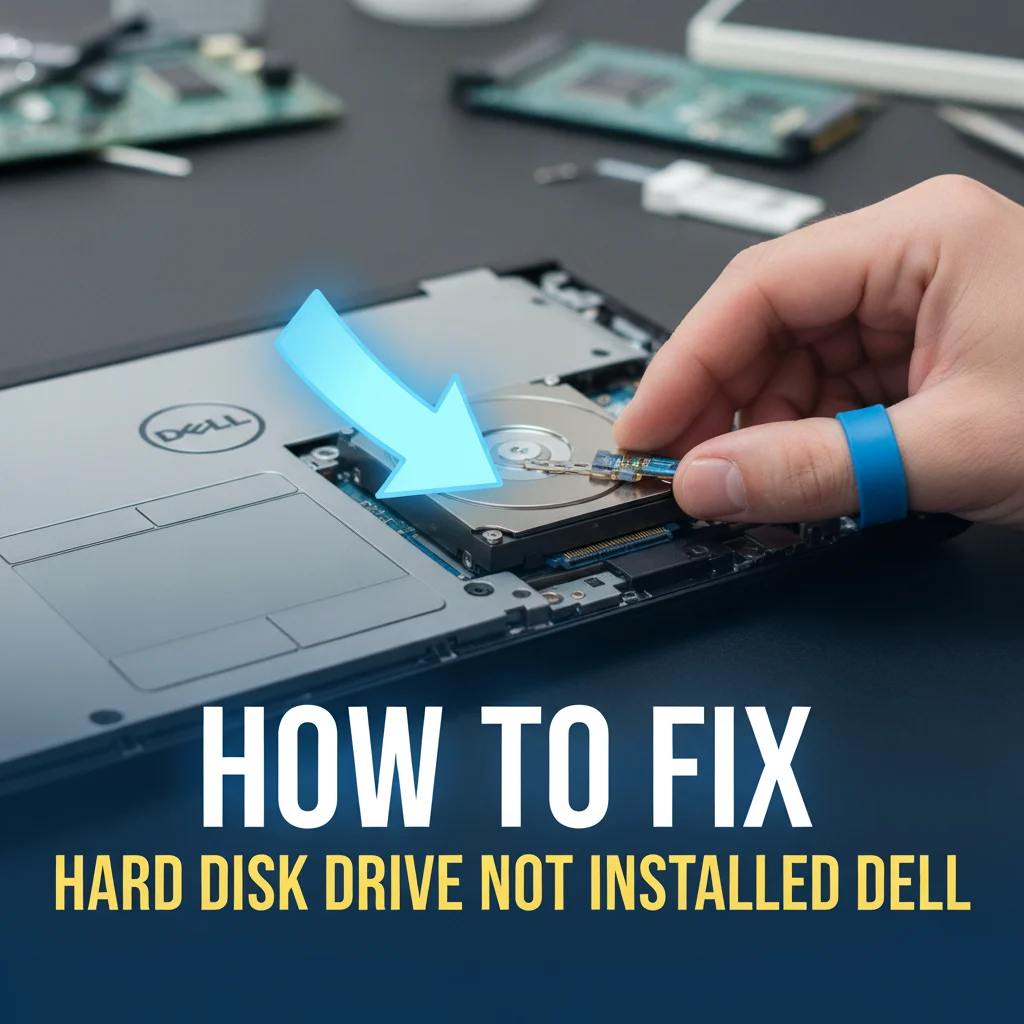
How to Fix “Hard Disk Drive Not Installed Dell”
I’ve been through this problem myself, and let me tell you that while it can be annoying, its usually fairly easily fixable with a few simple steps. A step-by-step guide to help those relationships get back on track:
Check the Physical Connections
The first thing I would suggest is to verify the hardware connections. It may seem too simple, but the problem can really be as simple as a loose cable. Here’s how you can check:
Shut down your computer and then unplug it from the wall.
Open the case (if using a desktop) or access the hard drive compartment (if using a laptop).
Make sure that your SATA cable (the one that connects between your hard drive and motherboard) is firmly connected. If the cable seems loose, try pushing it back in or swap for a new one.
Also check the power connections. If the drive is not get power supply, then it will not be able to detect.
This could be the source of problem, so make yourself clear here.
Access the BIOS/UEFI Settings
Assuming the connections on your physical hardware are all set right, the next things to check are in BIOS (Basic Input/Output System) or UEFI (Unified Extensible Firmware Interface). These are the settings which determine how your computer interacts with its hardware components for example; the hard drive.
Reaching the BIOS on your Dell:
Restart your computer.
When the system is first starting up, press the F2 key (or Option-F two keys if you don’t have an F2).
When in the BIOS, search for the Storage or Boot tab.
Verify if the hard drive appears under the SATA devices or boot options. If it is not listed, then the device may not be connected properly or there may be a problem with it.
You can also reset in BIOS to default settings. That can be useful if it’s a misconfiguration of BIOS that is causing the problem. To do this:
Locate the restore defaults option in your BIOS and select it.
Save and Exit the BIOS and restart your Computer.
Check for Hard Drive Failures
If your 4 TB external/ internal drive is not detected in BIOS, it’s probably a hardware-related issue. To check this:
Listen for abnormal noises emanating from the drive — a repetitive clicking or even scraping could signal physical damage.
You can also see if the drive is recognized on a different computer. If it does and no lo behold, the problem most likely lies with your Dell, not the drive.
If bad and in warranty get in touch with Dell for a replacement drive. If it’s out of warranty, you might have to buy a new drive.
Update Drivers and Firmware
Old or corrupt drivers can do the same, and they can be a pain to locate even with some help from search engines. Here’s what you want to do:
Put it on a USB disk, and download up to date drivers from the Dell’s website. You can look up your system’s model and download the drivers that are explicitly for your version of Windows.
Update the firmware: Visit Dell Support website to see if your system has any available firmware updates. Now, you do that with software on one end and firmware on the other.
If you can’t boot into Windows, you probably need to do this from Safe Mode or the advanced troubleshooting tools if that doesn’t work.
Check the Disk from Safe Mode
If you got into Windows, it’s time to test the drive’s surface using a built-in tool that came with your system called CHKDSK. Here’s how you can do it:
Use Win + R keys to open Run dialog.
Type a cmd and then press Ctrl + Shift + Enter to open the command prompt as an administrator.
In the Command Prompt, enter this command:
chkdsk /f /r C:
(Forgiant C: with what suits if it’s not your main drive.)
Press Enter to have Windows check and fix any disk errors.
This program will scan the drive for problems and fix all of those errors that could be causing the issue.

Additional Solutions and Tips
Reinstall Windows
Occasionally you may need to reinstall Windows if the problem still persists after completing all of these steps. This can be done by:
Making a bootable USB with Windows installation media.
Reinstalling Windows while keeping your files (or wiping the drive entirely if you’re planning to sell or dispose of the computer).
Seek Professional Help
If all else fails, it’s time to enlist the professionals. Contact Dell technical support and they’ll be able to help you diagnose hardware issues. If your hard drive is under-warranty, they may replace it for free.
Purchase the Hard Drive at Amazon

Frequently Asked Questions
What is the Reason for “Hard Disk Drive Not Installed Dell” error?
The issue is generally caused when the hard disk is not properly detected with BIOS, misconfigured or it’s really a broken hard drive.
How can I enter the BIOS on a Dell computer?
Shut down the computer, then turn it on again, when you see the Dell logo start pressing F2 and you’ll be in the bios.
Is it possible that my BIOS is corrupting this?
Yes, a bad BIOS can result in the hard drive not being detected by the system. To fix this problem, you can reset the BIOS, by restoring its default settings.
How do I fix the BIOS when my hard drive is not detected?
Make sure all connections are not physically loose or damaged, consider flashing/installing the latest BIOS revision for your motherboard/chipset, try another computer to make sure that you didn’t receive a bum drive.
‘How to update drivers on Dell laptop?’
You can do this by going to the Dell Support page, entering your system model and downloading the latest drivers and updates for your device.
Can I fix this issue myself?
Yes, you can try to fix this error by verifying connections, updating BIOS and drivers or using system tools such as CHKDSK. [If the issue continues, professional assistance may be required.]
What if my disk is defective?
If your hard drive is physically broken, you may need a new one in its place. And if your drive is still under warranty, Dell provides warranty services.
Conclusion
Dealing With the “Hard Disk Drive Not Installed Dell” Error If you have been greeted with the error message hard disk drive not installed dell, do not panic, keep your cool and go through a step by step troubleshooting guide to resolve the issue which we will be discussing in this article. From inspecting physical connections to updating drivers or resetting the BIOS, most of these problems can be resolved without replacing your drive. But if all else does not work and you believe it might be a hardware failure, feel free to contact Dell support about a replacement.
With a little patience and thoughtful strategy, you can set your system back on the rails — no long-term headaches necessary.
If you still need help, check out Dell Support resources or this article on How to Troubleshoot a Hard Drive Error on a Dell Computer