How to Check What Power Supply I Have — Have you ever wondered what power supply your computer uses? Whether you’re upgrading your PC, troubleshooting issues, or just curious, knowing your power supply details is essential.
Your power supply unit (PSU) is the heart of your computer, feeding energy to all the components that keep your system running smoothly. But, how do you check what power supply you have without opening the case or sifting through confusing specs?
In this guide, you will discover simple steps to identify your PSU, ensuring you have the right information at your fingertips. We’ll break down the process, making it easy and stress-free, so you can focus on what truly matters—enhancing your computer’s performance. Stick around to uncover the secrets hidden within your PC’s case and empower yourself with the knowledge to make informed decisions.
Identifying Your Power Supply
Identifying your power supply is crucial for any computer upgrade or troubleshooting task. Have you ever wondered why your computer shuts down unexpectedly or why your new graphics card won’t work? Knowing the type and capacity of your power supply can answer these questions and save you time and frustration. Let’s dive into how you can identify your power supply with ease.
Physical Inspection
Start by unplugging your computer for safety. Remove the side panel to access the internal components. The power supply is typically located at the top or bottom of the case.
Look for a metal box with numerous cables extending from it. You might notice a fan or vents on the power supply. This physical inspection helps you identify the form factor and design, which can be vital for compatibility with upgrades.
Have you ever discovered that your power supply is too bulky for a new case? By inspecting its size and design, you can avoid purchasing incompatible parts. This step is all about using your eyes to gather information.
Label Reading
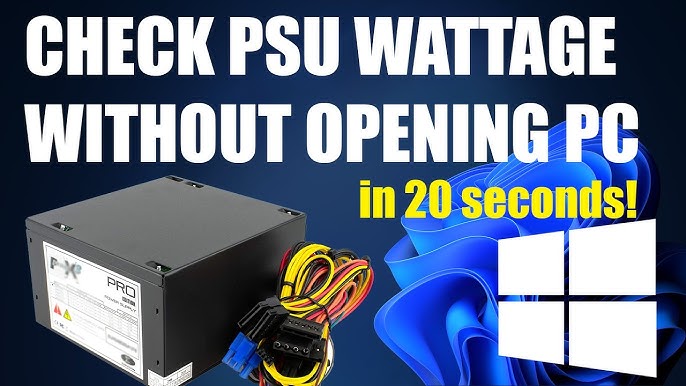
Examine the label on the power supply unit. It typically contains essential details such as wattage, brand, and model number. You can find this label on the side or top of the unit.
Make sure to note the wattage, as this determines how much power your system can handle. A label might reveal that your system can only manage low-power components. This information can guide your upgrades effectively.
Did you ever buy a component only to discover your power supply couldn’t support it? Reading the label can prevent such costly mistakes. It’s a straightforward step that provides clarity on your system’s capabilities.
Have you identified your power supply yet? If so, you’re well on your way to ensuring your computer runs smoothly. This knowledge empowers you to make informed decisions about upgrades and troubleshooting.
Credit: www.youtube.com
Tools You May Need
Checking your computer’s power supply can seem challenging. Yet, with the right tools, it’s straightforward. This section covers the essential tools needed. These tools help you identify your power supply effectively.
Screwdriver
A screwdriver is essential for accessing your computer’s internals. Most computers use Phillips-head screws. Ensure you have a compatible screwdriver. This tool allows you to safely remove the case panel. Handle it with care to avoid damage. Keep it within reach for easy use.
Flashlight
A flashlight is crucial for better visibility. Computer cases can be dark inside. A flashlight helps you see the power supply label clearly. Use it to illuminate all corners. It’s especially useful for reading tiny print. Choose a small, portable flashlight for convenience.
Opening Your Computer Case
Opening your computer case allows you to see the inside components. This process is essential for checking your power supply. Knowing the power supply’s specifications helps ensure compatibility with other hardware. Many users feel intimidated by the idea of opening their computer case. But don’t worry. This guide will walk you through each step.
Safety Precautions
Before starting, ensure your computer is off. Unplug it from the wall to prevent any electrical hazards. Static electricity can damage components. Touch a metal object or wear an anti-static wristband. This releases any static charge you might carry. Work on a stable, non-conductive surface. Keep liquids away from your work area.
Step-by-step Instructions
Begin by locating the screws on the side of your computer case. Most cases have screws at the back. Use a screwdriver to remove these screws. Gently slide or lift the side panel off. Be cautious of any cables connected to the panel. With the panel removed, look for the power supply unit (PSU). It’s usually located at the top or bottom of the case. The PSU label will show its specifications. Take note of the wattage and model number. This information is crucial for future upgrades.
Locating The Power Supply Unit
Whether you’re troubleshooting a computer issue or planning to upgrade your system, knowing how to locate your Power Supply Unit (PSU) is essential. This component is the heart of your computer’s power management. Finding the PSU might seem daunting, but it’s easier than you think. Let’s explore exactly where you should look and the common placements for power supplies in various systems.
Where To Look
First, you need to know where the PSU typically resides. Most desktop computers house the PSU within the tower case. Look towards the rear; this is where it’s often mounted. You’ll usually find it near the top or bottom, depending on the case design.
Have you ever peeked behind your computer case and noticed a fan or a mesh-like surface? That’s usually the PSU vent. It’s a good indicator that you’re on the right track. Once you spot this, you’re close to identifying your PSU.
For laptops, the power supply is external, usually in the form of an adapter. It doesn’t require opening up your laptop, making it straightforward to identify. Check the adapter’s label for detailed information about your laptop’s power supply.
Common Psu Placements
In many modern tower cases, the PSU is positioned at the bottom. This placement helps in managing airflow and keeps your system cooler. If you own a gaming rig, check the bottom compartment of your case.
Older computer models might have the PSU mounted at the top. This placement was standard for years, so if you have a legacy system, glance upwards when you open the case.
Compact systems, like mini-towers, can have the PSU integrated in various positions. In these cases, it may be tucked away in a corner or a side panel. Such configurations require a bit of maneuvering to spot, but they’re usually accessible once you know what you’re looking for.
Knowing where your PSU is located can save you time and effort. Next time you face a power-related issue or need to upgrade, will you remember these insights and locate your PSU with confidence?
Understanding Power Supply Specifications
Determining the power supply in your computer involves checking the label on the unit itself. This label usually displays important specifications. These details help you identify the power output and compatibility with other components.
Understanding the specifications of your power supply is crucial for ensuring your computer runs smoothly. When I first built my PC, I overlooked the power supply and ended up with unexpected shutdowns. It taught me the importance of knowing exactly what my power supply offers. A power supply isn’t just a box that powers your computer; it has specific features and capabilities that can affect performance and efficiency. Let’s dive into the details to help you avoid the mistakes I made.
Wattage
Wattage is the total power output your power supply can deliver. It’s essential to ensure your power supply has enough wattage to support all your components. Too low, and you’ll face system instability. Check the manufacturer’s label or your system’s documentation for wattage details. Remember, a higher wattage doesn’t necessarily mean better performance, but it should meet or exceed the total demand of your components.
Efficiency Ratings
Efficiency ratings indicate how well your power supply converts electricity from your outlet into usable power for your PC. Higher efficiency means less wasted power and lower electricity bills. Look for ratings like 80 Plus, Bronze, Silver, Gold, or Platinum. These ratings are more than just marketing jargon. They reflect real savings and reduced heat output, which can extend the life of your components. Have you ever considered how much energy your PC might be wasting?
Connector Types
Connector types determine what components you can power and how flexible your build can be. Different components need different connectors, like SATA for drives or PCIe for graphics cards. Check your power supply for the types and number of connectors it provides. Missing the right connectors can limit upgrades or require adapters, complicating your build. What if you wanted to add a new graphics card but found out you didn’t have the right connector? Understanding these specifications can save you time, money, and frustration. By knowing what to look for, you can ensure your computer operates efficiently and reliably.

Credit: www.wikihow.com
Using Software To Check Psu
When you’re troubleshooting your computer or planning an upgrade, knowing the specifications of your power supply unit (PSU) is crucial. While opening up your computer case is one way to check, using software tools can be a faster and more convenient method. These tools offer a straightforward way to gather detailed information about your PSU without having to physically inspect your hardware. So, if you’re curious about what’s powering your machine, here’s how software can help you find out.
Available Software Options
Several software applications can help you identify your PSU specifications. Programs like CPU-Z, HWMonitor, and Speccy are popular choices. These tools are designed to provide comprehensive insights into your hardware components, including the PSU.
While each application has its unique features, they generally offer easy-to-read interfaces that display vital information about your system’s power supply. You might discover insights about wattage, efficiency, and even brand details.
Have you ever wondered if your PSU is holding back your computer’s performance? These software tools might offer you the clues you need.
How To Use Software Tools
Using software to check your PSU is straightforward. First, download and install your chosen tool—most of them offer free versions. Once installed, open the application and navigate to the section related to power supply or system overview.
You’ll typically find a detailed list of components along with their specifications. Look for entries related to the power supply, such as wattage and model. This information helps you assess whether your PSU is adequate for your system’s needs.
Is your PSU up to the task for that new graphics card you’ve been eyeing? Software can give you the confidence you need before making the upgrade.
Can you imagine how much easier it is to plan your next upgrade with all this information at your fingertips? Don’t underestimate the power of a good software tool!
When To Replace Your Power Supply
Your computer’s power supply unit (PSU) plays a crucial role. It delivers power to all components. Knowing when to replace it is essential for performance. A failing PSU can cause system instability. This can lead to unexpected shutdowns and hardware damage. Recognizing the signs early can save you hassle and expense.
Signs Of A Failing Psu
Listen for strange noises. A whining sound could indicate trouble. Watch for frequent restarts. This might mean your PSU is not delivering enough power. Check for burning smells. This could signal overheating. Observe random shutdowns. An unreliable PSU may cause this issue. Look for visual signs. Swollen capacitors inside the PSU can be a warning.
Choosing A New Power Supply
Consider your system’s needs. Check the wattage requirements of your components. Ensure compatibility with your motherboard. Look at the PSU’s efficiency rating. Higher ratings mean less wasted energy. Opt for known brands. They often offer better reliability. Factor in future upgrades. Choose a PSU with extra power capacity. This allows room for new components later.

Credit: ms.codes
Frequently Asked Questions
How To Find My Power Supply Details?
To find your power supply details, check the label on the PSU itself. Open your computer case and look for specifications printed on the unit. Alternatively, you can use software tools like HWInfo or CPU-Z to gather information without opening the case.
Can I Check Power Supply Without Opening Case?
Yes, you can use software tools like HWInfo or CPU-Z to check power supply details without opening the case. These applications provide information on various hardware components, including power supply specifications, helping you understand its capacity and efficiency.
Why Is Knowing My Power Supply Important?
Knowing your power supply is crucial for upgrading components and ensuring system stability. A mismatched power supply can lead to hardware failures or insufficient power delivery. Understanding its capacity helps in choosing compatible parts, improving performance, and avoiding potential damage.
What Tools Identify Power Supply Specs?
Tools like HWInfo and CPU-Z can identify power supply specs accurately. These applications provide detailed information on various hardware components, including power supply details. They help users understand their system’s capacity and compatibility, aiding in upgrades or troubleshooting.
Conclusion
Understanding your power supply helps maintain your computer’s health. Checking it ensures compatibility with upgrades. Remember, knowing the wattage is crucial. This prevents overheating and keeps components safe. Follow simple steps to identify your power supply. Don’t forget to note brand and model details.
This information is useful for troubleshooting. Keep it handy for future reference. Regular checks can save you from costly repairs. Protect your investment and enjoy a smoother computing experience. Stay informed and proactive with your PC hardware. Your power supply knowledge is important.