How to connect Sony headphones to Bluetooth: Simple 2025 Guideline for All Devices


I still remember the first time I tried to figure out how to connect Sony headphones to Bluetooth and somehow ended up pairing them with my neighbor’s TV instead of my own device. A funny mistake, but it turned out to be a valuable lesson. In this guide, I’ll walk you through everything you need to know to connect your Sony headphones to Bluetooth the right way step by step, in the simplest terms possible.
By the end of this article, you’ll not only know how to pair Sony headphones effortlessly but also how to fix common Bluetooth issues and ensure a strong, stable connection every time. Plus, I’ll share a few personal tips and tricks I’ve learned through experience, so you can skip the confusion and enjoy seamless wireless sound from the start.

Why Bluetooth Pairing Sometimes Fails
You may have tried a couple of times and gotten “No devices found”. That’s normal. Bluetooth should work well enough, but there are a few things to watch out for:
- Device compatibility & Bluetooth versions: Other/older laptops or phones may have older versions (e.g., Bluetooth 4.0) that might not work well with new headsets.
- Interference: Wi-Fi, other Bluetooth gadgets or even microwaves in the same room can interfere with the signal.
- Low battery: You might need to put the headphones into pairing mode if they are really low on battery.
- Already paired elsewhere: If your headset is still paired to your phone, it may not enter pairing mode until you remove this connection first.
- Firmware issues: Bugs may be introduced if the headphones don’t have updated firmware, or if the host device does not have current software installed.
- As a general rule of thumb: Try to have some level of decent battery left for both the Sony headset and whatever is trying to connect beforehand, if any other device is actively paired.
View Details On Amazon

As it happens: How to Make Sony Headphones Discoverable
This is the critical move. The sequence is a bit different for each Sony model, but the pattern is similar. This is a more general method and should work for most models (WH-1000XM series, WF-1000XM earbuds, etc.):
- Turn the headphones off (if they’re on).
- Hold down the power button to about 7 seconds until blue and red lights start flashing alternately. (It can also flash blue only on some models.
- The headphones are in pairing mode and ready to be found.
Quick tip on a mistake I made: On my first pairing, I held down the power button but didn’t hold it down for as long as was needed (maybe 3 or 4 seconds) and the light just turned on as normal, not flashing or pairing. Holding it longer fixed that.
If your model has a “Bluetooth” button or a switch, follow its manual instructions. And a few newer Sony models go into pairing mode when you slide open the charging case (or for true wireless earbuds, either remove one of them from the other).
If flashing was successful, proceed to the device type specific step.
Connecting on Different Platforms
Here’s how to connect your Sony headphones with popular devices.

Windows (Windows 10 / 11)
- Open the Settings app > Devices > Bluetooth & other devices
- Toggle Bluetooth ON
- Select the “Add Bluetooth or other device” → “Bluetooth.”
- Wait for your Sony model (e.g. “WH-1000XM5”) to show up
- Click it and select Connect
If prompted for a PIN, try 0000 or 1234; Sony models almost never need one.
MacOS
- Open System Settings (or System Preferences) → Bluetooth Go to System Settings (System Preferences) → Bluetooth
- Make sure Bluetooth is ON
- Your Sony headphones ought to be listed under “Devices”
- Click Connect
If it does not appear, toggle Bluetooth off/on again on your Mac (or put the headphones back into the pairing mode).
Android
- Open Settings → Bluetooth
- Turn Bluetooth ON
- The phone is scanning: When you find your Sony model, tap on to pair
- If asked, accept or enter your PIN (rarely required)
And on Android 13+ you can tap “Pair new device” under Bluetooth settings to force a scan.
iOS / iPadOS
- Settings → Bluetooth
- Toggle it ON
- Wait until your Sony headphones name is displayed.
- Tap it to connect
It doesn’t appear, try toggling Bluetooth off and on or putting the headphones back into pairing mode.
Check Latest Price
Troubleshooting Common Pairing Problems
Even when you do everything “right,” there may be hiccups. Here’s how I solved mine (and you can, too).
Headphones Aren’t Being Detected
- Make sure your headphone is in pairing mode (Light flashing).
- Get close (less than ~1 meter) – decrease the distance and interference.
- Please close other Bluetooth connection devices around.
- Turn Bluetooth off in your phone or computer, then turn it back on.
- Reset Bluetooth module (Mac users: hold Shift+Option and click on the Bluetooth icon → Debug → Reset).
The Headset is Paired But No Sound Plays
- Check your computer or phone to ensure that the output device is established as the Sony headphones.
- Occasionally you will be getting “Headset” mode instead of “Stereo.” Change it to “Stereo.”
- Restart the connected device.
- Re-pair again if necessary.
The Connection keeps Dropping
- Update firmware Keep that firmware updated (See next section).
- Do NOT put your source device in a pocket or bag (its signal is blocked).
- Disable 2.4 GHz Wi-Fi and see if it makes a difference: ascertain whether interference is your issue.
(If your model supports it) Use the “Priority device setting” to enable your headset/speaker to only connect with only one of two devices ever paired with simultaneously.
Problem: It Continuously Connects to a Different Device
- Disconnect from other devices first.
- Erase (“forget”) the headphones in that other device’s Bluetooth settings.
- Now pair fresh with the device you want to connect.
If you’re still stuck, a factory reset (see next section) will usually clear up deeper issues.
Update Firmware & Factory Reset
Connection bugs are often resolved with firmware updates. Check for updates and install them using Sony’s Headphones Connect app (on iOS and Android).
If you are still facing problems factory reset your phone. The hard reset process will vary depending on your model, but generally:
- Turn off the headphones.
- Hold down power + volume up (or down) for ~10 seconds until the LED changes (or turn red/blue).
- The machine is reset to factory default and you must configure pairing once more.
Always consult your manual or Sony’s support site for your specific model name + “reset” for precise instructions.
How to Achieve Stable Performance & Better Battery Life
Here are some useful hints I’ve learned from daily use:
- Keep software current. Always install firmware updates.
- Use one device at a time. Interference may be caused if there are many active Bluetooth devices in the vicinity.
- Don’t exceed range. Like within 10 meters (30 feet) is good, ideally with a straight line of sight.
- Keep your headphones charged. Falling battery power can disturb connections at any time.
- Turn off unused wireless tech. Turn off Wi-Fi or other Bluetooth devices during key calls or listening sessions.
- Take breaks. I turn off my headphones when they’re not in use for long periods to save battery and avoid pairing problems.
These things are pure time savers, but I probably could not have come up with them if you put me in this same situation tomorrow.
How to Connect Bluetooth Headphones Sony (Ultimate Guide)
People often wonder how to connect Bluetooth headphones Sony, but they are really looking for universal steps. Here’s the general rule:
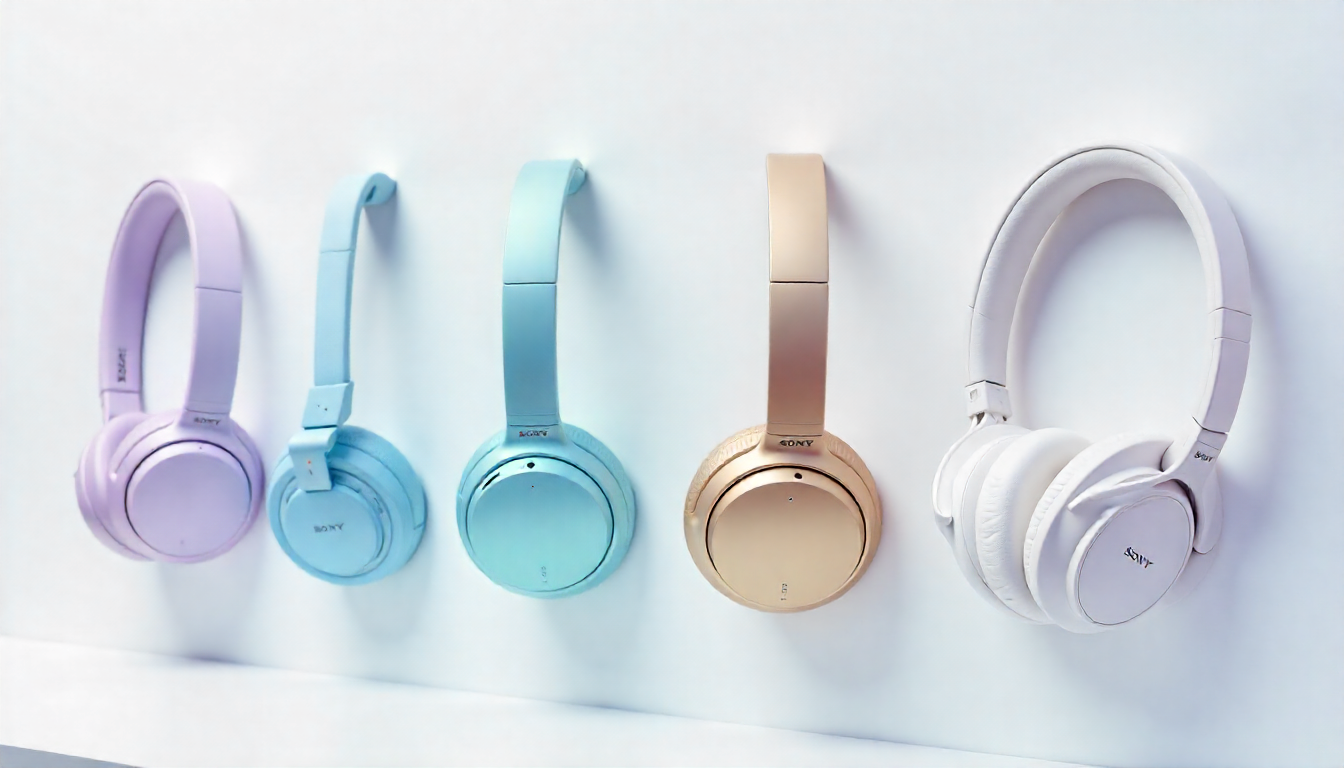
- Step 1: Set headphones into pairing mode Alright, you’ve removed your headphones from the packaging and charged them up — but now what?
- Second Step: Turn on Bluetooth in your device.
- Step 3: Select your headphones.
- Step 4: Confirm the connection.
That’s it! But issues may occur. Here’s what to do about common issues:
Problem: Headphones not showing in list
Fix: Attempt to restart your headphones by pressing and holding the power button for 10 seconds.
Problem: Connected but no sound
Fix: It could be your device’s “Sound Output” settings.
Problem: Frequent disconnection
Fix: Delete it from your Bluetooth list, and then pair it again.
How to Connect Sony Headphones to Laptop
Another popular question is like how to connect sony headphones to laptop. If you are If you are on Windows or macOS, it’s relatively easy to do. Follow our detailed laptop connection guide for more device-specific troubleshooting.on Windows or macOS, it’s relatively easy to do.

For Windows Laptops:
- Open “Bluetooth & Devices.”
- Click “Add Device” → “Bluetooth.”
- Put your Sony headphones in pairing mode.
- Select them from the list.
For macOS Laptops:
- Go to “System Preferences.”
- Click “Bluetooth.”
- Ensure Bluetooth is ON.
- Select your Sony headphones and connect.
Laptop Tip:If your laptop is non-bluetooth built-in device, please purchase a USB 3.0 bluetooth adapter to connect this transmitter. EPther options :Avantree Oasis Plus( use)
How to connect sony headphones to windows 11
For a visual walkthrough, visit our step-by-step Windows 11 pairing guide this is the step-by-step breakdown:
- Go to Settings → “Bluetooth & Devices.”
- Click Add Device → Bluetooth.
- Find your Sony headphones and press them to enter pairing mode.
- Pick those from the list of devices.
- Confirm the connection.
Troubleshooting Windows 11 Pairing:
- Update your Bluetooth drivers.
- Reboot your PC and headsets.
- (Use “Forget Device” and repair, if necessary.)
How to connect sony headphones to mac
Mac users have a frequent question: how to connect Sony headphones to Mac? Here’s a complete Mac pairing tutorial that breaks it down clearly.
- On your Mac, Launch Apple Menu → System Preferences → Bluetooth.
- Ensure Bluetooth is enabled.
- Get your Sony headphones ready for pairing.
- Choose from the list of availabledevices.
- Click “Connect.”
Bonus Tip: When using with iPhone on a MacBook, Sony’s multipoint pairing makes switching between calls and music seamless.
Top Bass Headphones
For deeper recommendations, check out our list of the top bass headphones that deliver heavy beats.. Their Extra Bass collection is perfect for anyone who likes deep, punchy beats.

Recommended Sony Bass Headphones:
- Sony WH-XB910N: Over-ear wireless headphones with a gigantic bass sound.
- Sony WF-XB700: Workout ready in-ear earbuds with extra bass.
- Sony MDR-XB55AP: Best budget wired with bass booom.
They’re ideal for hip-hop, EDM and those bass heavy tunes.
Best Headphones for Music Quality
When it comes to sound clarity, nothing tops Sony’s elite lineup. See our best headphones for music lovers guide for more detailed analysis. The flagship models from Sony are for audiophiles.

Best Picks for Sound Quality:
- Sony WH-1000XM5: Premium noise-cancelling headphones with adaptive sound.
- Sony WF-1000XM4: True wireless earbuds with Hi-Res Audio.
- Sony MDR-Z1R: Premium wired headphones for audiophiles.
These models stress balance, so are perfect for classical, jazz and vocal music (A typical sealing pair can reduce noise 5 -25 dB).
Additional Tips for Using Sony Headphones
- With the Sony Headphones Connect app: set a custom equalizer, change the sound levels and digital sound field modes; both with and without noise cancelling adjustments.
- Turn on LDAC or aptX: For better sound (if your device supports it).
- Regularly clean your headphones: especially earbuds, to prevent muffled sound.
- Upgrade firmware: Provides better connectivity and performance.

FAQs About Connecting Sony Headphones
1. Why are my Sony headphones not connecting to Bluetooth?
See if your headphones are in the pairing mode. If you don’t already mess with pointing pressure curves, try it out.
2. Can I pair Sony headphones with two devices?
Yes, WH-1000XM5 models and its kind have support for multipoint pairing (two devices simultaneously).
3. How do you factory reset Sony headphones?
Hold the power button down for around 10 seconds until the LED starts blinking.
4. Can you pair Sony headphones to Smart TV?
Yes. Simply open your television’s Bluetooth settings, put your headphones in pairing mode and select them to connect.
5. What happens after you connect.? Why no sound(what- I -DOnTeL lIges$e)?
Check your device’s sound output. Verify “Sony Headphones” are selected.
6. Do Sony headphones work with iPhone?
Absolutely. Connect them to your device just as you would other wireless headphones through Bluetooth.
7. Is wired better than Bluetooth?
Wired has zero latency, but Sony’s recent Bluetooth models with LDAC are close in quality to wired.
8. What are the best Sony headphones for gaming?
Sony INZONE series (H7, H9)” designed for gamers with the sound of low latency.
9. How to connect Sony headphones to Bluetooth?
Turn on your Sony headphones and hold the pairing button until the light flashes. On your device, open Bluetooth settings, select your Sony headphones, and confirm the connection.
Conclusion
It is a very simple process to connect Sony headphones via Bluetooth once you know how. As long as you begin in pairing mode and have two devices that are charged up, there should be no problem clearing out old connections so they will not cause issues. If there are issues, like in the case of trying to use one other set features not available with a since canceled preorder, simple solutions like updating firmware or resetting the headphones should resolve it quickly.
And since a stable Bluetooth connection also depends, in part, on small habits like always keeping your device within range, avoiding interference sources, and maintaining battery health, I put those to the test as well. After doing this every time you use your Sony headphones, you will experience good sound quality and reliable wireless performance.