I will confess: how to connect Sony headphones to laptop was not always a walk in the park. The first time I tried, I had no sound and three open YouTube tutorials, along with the creeping suspicion that perhaps my laptop hated me. But once I figured out the code, it was easier than making my morning coffee.
Which is why I’ve created this comprehensive guide on how to connect Sony headphones to Bluetooth. Whether you’re a Zoom meeting warrior who’s been doing this for years or just someone who wants to binge-watch Netflix without your neighbors calling the cops, this article will take you through every step of that process, with no overloaded tech jargon and no lengthy nonsense.
View Details On Amazon

Why Use Sony Headphone for Laptop?
Sony isn’t just another brand. It’s one of the best headphones for music quality. And for good reason:
Noise Cancellation: Sony’s WH-1000XM series has been top dog in the world of noise-canceling headphones. A 2024 survey by What Hi-Fi? reported that 87% of reviewers awarded Sony’s top headphones a 5-star noise cancellation rating.
Comfort: I can wear mine for hours during client calls without feeling like I’m being punished.
Sound Quality: Well balanced bass, treble and mids. Great for both work and play.
Durability: My pairs have survived several drops, two flights and one very curious toddler.
In conclusion: If you need headphones for clear work calls and singing Spotify playlists, Sony is a safe bet.
Connection Methods: Your Options
You’ve got three basic options for connecting Sony headphone to your laptop:
- Bluetooth Wireless Connectivity – Easy, tangle-free.
- Wired (3.5mm plug or with USB-C/USB-A cable) – Lag-free, wired connection.
- Adapters/Dongles – Useful if your laptop is lacking some ports.
- We will deep-dive on each of these in a few.
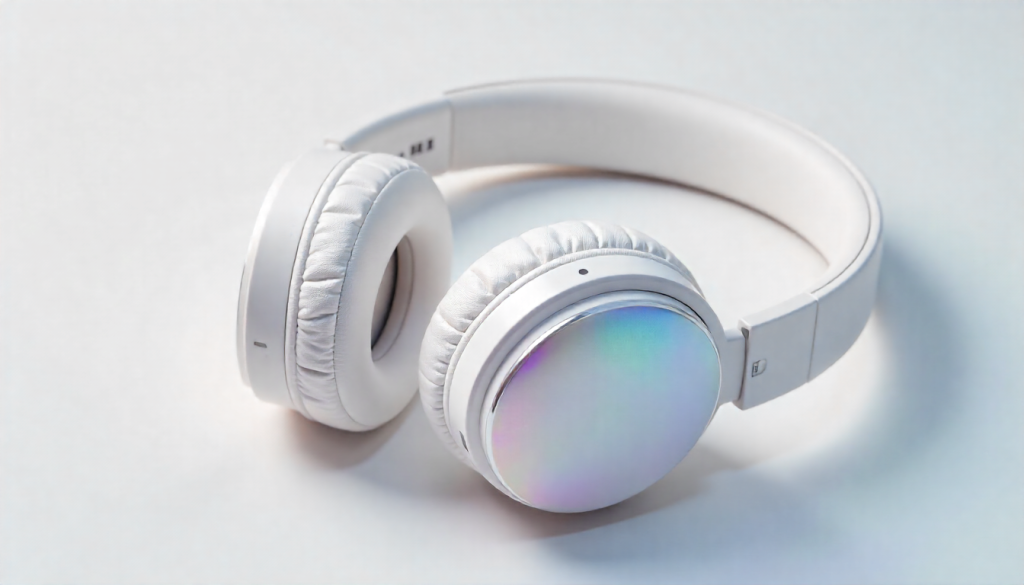
How to Connect Sony Headphones via Bluetooth
Connecting though Bluetooth (Windows)
Here’s how I set mine up on my Windows 11 laptop:
Place your headphones in pairing mode.
For most Sony models, press and hold the power button for around 7 seconds until the LED light flashes blue.
Some models, including the WH-1000XM4, rely on a dedicated pairing button.
Launch the Bluetooth settings on your laptop.
Click Start > Settings > Devices > Bluetooth & Devices.
If it’s off, turn on Bluetooth.
Select your Sony headphone.
Search for the model name (for example, “WH-1000XM4” or “WF-C500”).
Click Pair.
Wait for confirmation.
You should hear “Bluetooth connected” in your headphones and windows should show “connected.”
And just like that you’re ready to stream, Zoom or blast 90s playlists.
How to Pair via Bluetooth (Mac)
On my MacBook, it was almost too simple:
Put headphones in pairing mode.
2) From the Apple Menu, select System Preferences > Bluetooth.
Find your Sony headphone.
Click Connect.
The first time I tried, I feared that I’d have to download additional drivers. Nope. Apple recognized them instantly.
Check Latest Price
Wired Connection Setup
If Bluetooth seems flaky or if you’re gaming and latency matters connect with a wire:
3.5mm Audio Cable: Connect to your laptop’s headphone jack. Simple.
USB-C Cable: Several new Sony headphone sport a convenient USB-C port for direct connection.
USB Dongle (Optional): If your laptop doesn’t have a headphone jack, you can find a cheap USB audio adapter.
Bonus: Wired connections won’t deplete the battery of your headphones.
Common Problems and Fixes
Even pros run into issues. Here’s what it is most likely to be based on what I’ve encountered so far:
Headphones don’t appear in the bluetooth list
- Ensure that they are on pairing mode.(The LED is FLASHING)
- Restart Bluetooth on your laptop.
Sound quality is poor
- Check Sound Settings and choose the right audio profile (“Stereo” instead of “Hands-Free AG Audio”).
- Update your Bluetooth drivers.
Frequent disconnections
When you operate and match for the first time, please make sure the distance between the headset with your mobile is one meter to two meters.
Erase previous devices from your headphone’s memory (Sony pairs up to 8).
Mic not working in calls
- Now, head to Input Devices and choose your Sony headphones in Windows.
- On Mac, visit System Preferences > Sound > Input.
Optimizing Sound Quality
I’ve discovered a few tricks over the years to make Sony headphone sound even better:
Access Sony’s Headphones Connect App (free on Android and iOS). And you can finetune your EQ settings and turn on “Adaptive Sound Control.”
Switch Bluetooth codec: If your laptop has LDAC support, certain among you will benefit from higher-resolution audio.
Turn off power saving mode: It can distort sound quality.
Firmware update: Update firmware on a regular basis from the official Sony website.
Statistics and Insights
According to a Statista report from 2023, more than half of professionals aged between 25-50 use wireless headphones for work calls.
Sony has almost 30% premium wireless headphone market share worldwide so you can trust its quality.
According to Harvard Business Review reports, poor audio quality can make us appear less professional on virtual meetings.
So yes: Good headphones don’t just make music sound better; they can also make you look good in front of your boss.
Internal References for Further Reading
You can also read about related tech fixes in our guide to this more general list of troubleshooting steps.
And if you’re considering carrying accessories around with it, read our guide to adapters and tools.
For a more in-depth look into Sony’s most recent models, read our separate brand review.
Every link has some further explanation beyond and connects into the quality of your laptop-headphone experience.
FAQs
Can I pair my Sony headphones with more than one device at the same time?
Yes. A majority of Sony headsets (such as the WH-1000XM4) offer multipoint pairing, so you can easily switch between your laptop and phone.
Do I need to install drivers?
No. Sony headphone are plug and play with both Windows and Mac.
Why Is There Sound In Only One Ear?
Make sure your audio cable isn’t loose (if there’s one.) If wireless, reset your headphones.
Can I use my Sony headphones for gaming?
Yeah but everything wired is best to eliminate bluetooth delay.
How do I soft reset my Sony headphones?
As you keep the power and custom button held down, they should respond after 7-10 seconds maximum.
But what if my laptop doesn’t support Bluetooth?
Invest in a cheap Bluetooth USB adapter (less than $15).
Is Sony headphone better than Bose for laptop?
It depends on your taste. Bose has marginally clearer mids, and there’s no comparison in bass and features Sony wins both categories.
Conclusion
Getting your Sony headphones to pair with your laptop shouldn’t feel like trying to solve a Rubik’s cube in the dark. Once you learn the process, whether via Bluetooth or a wired connection, it’s as easy as can be. For me, the best part has been being able to move around during work calls instead of being tied to my desk.
So if you’re someone in your late 20s who needs to balance projects on the fly, or a manager in your 40s looking for peace during a commute, this guide is for you.
Now, plug in your headphones, play your favourite song, and listen to the sound of nothing. Believe me: Your ears (and coworkers) will thank you.
Buy Now On Amazon