Mac Not Recognizing External Hard Drive: Troubleshooting Tips


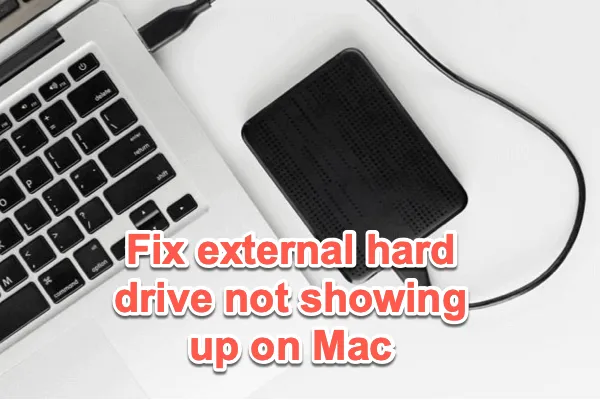
If your Mac is not recognizing your external hard drive, you’re not alone—this common issue has several straightforward fixes
Many users face this frustrating problem. Sometimes, your Mac simply refuses to connect with your external drive. You plug it in, and nothing happens. No files, no folders, just silence. The drive might be working perfectly well on other devices, but it seems invisible to your Mac.
Understanding why this happens can save you time and stress. It could be a simple software glitch or a more complex issue. Maybe the drive isn’t formatted correctly for Mac. Or, your Mac’s settings might need a tweak. Finding the root cause is essential for restoring your files and ensuring smooth operation. Dive in to explore solutions and get your Mac and external drive back in sync.
Credit: iboysoft.com
Why Your Mac Is Not Recognizing an External Hard Drive
Macs often fail to recognize external hard drives due to outdated drivers or incompatible file systems. Connection issues, like faulty cables or ports, can also disrupt recognition. Ensuring software updates and checking hardware connections usually resolves these problems swiftly.
When your Mac doesn’t recognize your external hard drive, it can be frustrating. But before you panic, it helps to understand the common causes. Identifying the problem can often lead to a simple solution and get your drive up and running again. Let’s dive into some typical issues and how to tackle them. ###
Connection Issues
One of the most frequent culprits is a connection problem. Check if the cable is securely plugged into both your Mac and the hard drive. A loose connection can prevent your Mac from detecting the drive. Consider trying a different USB port. Sometimes, ports can malfunction or be temporarily unresponsive. If you have access to another cable, use it to rule out a faulty cable as the problem. Have you ever experienced a power supply issue with your external hard drive? Ensure it’s properly powered, especially if it’s a larger drive that requires an external power source. ###
Software Conflicts
Software conflicts can also prevent your Mac from recognizing an external hard drive. Check if your macOS is up-to-date, as updates often include fixes for hardware compatibility issues. Do you have third-party applications that manage external drives? Sometimes these can interfere with the drive’s recognition. Consider disabling or uninstalling these apps to see if that resolves the issue. Additionally, look into the drive’s format. Macs require a specific file system format to read drives. If it’s not formatted correctly, your Mac might not recognize it. You may need to reformat the drive, but remember, this will erase all data on it. By understanding these common causes, you can troubleshoot the issue efficiently. Have you encountered any of these problems before? Taking proactive steps can often save time and prevent data loss.
First Steps When Your Mac Won’t Recognize an External Drive
Experiencing issues with your Mac not recognizing an external hard drive? Start by checking the cable connection. Ensure the drive is compatible and correctly formatted for Mac.
If your Mac isn’t recognizing your external hard drive, it can be incredibly frustrating. But before you start worrying about lost data or costly repairs, take a deep breath. There are a few initial checks you can perform to potentially solve the issue quickly and easily. These steps are straightforward and can often pinpoint the problem, saving you time and stress. ###
Inspecting Cables
Begin by taking a close look at the cables connecting your external hard drive to your Mac. Are they in good condition? Sometimes, a simple kink or break in the cable can be the culprit. Try swapping out the cable with another one you know works. A personal experience taught me that a seemingly intact cable was the issue, even though it looked perfectly fine. You might be surprised at how often this simple check can resolve the problem. ###
Testing Ports
Next, test the ports on your Mac. Plug your external hard drive into a different USB or Thunderbolt port. Does it show up now? It’s possible that the port you initially used is faulty or has accumulated dust, hindering a proper connection. I once found that a port on my MacBook wasn’t functioning because of a tiny speck of dust. A quick clean with compressed air did the trick. By testing each port, you can determine if the issue lies with the drive or the Mac itself. Are you checking every possible connection option? Don’t overlook this simple yet effective troubleshooting step. Remember, these initial checks are just the starting point. They can often resolve the issue or at least help identify the problem’s source. If your Mac still doesn’t recognize the external hard drive after these checks, it may be time to explore more advanced troubleshooting methods.
System Preferences Fixes for When Your Mac Is Not Recognizing an External Hard Drive
Dealing with a Mac that doesn’t recognize an external hard drive can be frustrating. One of the first places to check is the System Preferences. This section holds the key to many settings that can affect how your Mac interacts with external devices.
Finder Settings
Open Finder and click on “Preferences” in the top menu. Ensure the “External disks” option is checked under the “General” tab. This setting allows your Mac to display connected external drives on your desktop. If unchecked, the drive might be connected but invisible.
Disk Utility Options
Access Disk Utility through Applications or by searching in Spotlight. Look for your external hard drive in the list of drives. If it appears, select it and click “Mount” if it’s unmounted. Sometimes, a drive needs manual mounting to be recognized properly.
Check for any errors or issues by clicking “First Aid” in Disk Utility. This tool can fix minor disk problems that prevent your Mac from recognizing the external drive.
Credit: iboysoft.com
How Software Updates Can Fix Mac Not Recognizing External Hard Drive Issues
Sometimes, your Mac might not recognize an external hard drive. Updating your software can solve this issue. Regular updates ensure compatibility with new devices and fix bugs. Let’s explore how MacOS updates and driver installations can help.
Macos Updates
MacOS updates improve system performance and device compatibility. Check for the latest updates by accessing System Preferences. Click on ‘Software Update’ to see available updates. Installing these updates can resolve recognition issues with external hard drives. Keeping your MacOS current is crucial for optimal device support.
Driver Installations
Drivers enable communication between the Mac and external hardware. If your hard drive isn’t recognized, check for driver updates. Visit the hard drive manufacturer’s website for the latest drivers. Download and install them to ensure smooth operation. Missing or outdated drivers can cause connectivity issues.
Resetting SMC/NVRAM When Your Mac Is Not Recognizing an External Hard Drive
Experiencing issues with your Mac not recognizing an external hard drive? Resetting SMC and NVRAM might help. These resets can resolve hardware glitches and improve device detection.
Resetting the SMC (System Management Controller) and NVRAM (Non-Volatile Random-Access Memory) can be a lifesaver when your Mac isn’t recognizing an external hard drive. These resets can resolve a host of quirky issues, including problems with power, sleep, and even your device’s recognition capabilities. Imagine your Mac as a stubborn friend who sometimes needs a gentle nudge to get back on track. Resetting these components is like hitting the refresh button, allowing your Mac to start anew. ###
Steps For Smc Reset
Resetting the SMC is straightforward and can often resolve hardware-related issues. 1. Shut Down Your Mac: Ensure your Mac is completely turned off. Unplug the power adapter if you are using a MacBook. 2. Press and Hold the Keys: For a MacBook with a non-removable battery, press and hold the Shift, Control, and Option keys on the left side, along with the Power button, for 10 seconds. 3. Release All Keys: After 10 seconds, release all the keys and the power button simultaneously. 4. Restart Your Mac: Press the power button to turn on your Mac. Doesn’t it feel empowering to have such a simple solution at your fingertips? You might wonder why Apple doesn’t make these processes more known. ###
Steps For Nvram Reset
NVRAM stores small amounts of information that your Mac needs before loading the operating system. Resetting it can help with recognition issues. 1. Shut Down Your Mac: Turn off your Mac completely. 2. Press and Hold the Keys: As soon as you turn it back on, immediately press and hold the Option, Command, P, and R keys together. 3. Wait for the Restart: Keep holding the keys for about 20 seconds. During this time, your Mac might restart and you may hear a startup sound. 4. Release the Keys: Once you hear the second startup sound, release the keys. Your Mac should now be reset. How often do we forget that these tiny adjustments can solve significant problems? Don’t you love it when a simple reset is all it takes to bring your tech back to life? Remember, these resets are safe and won’t erase any data on your Mac. They are designed to solve issues and improve performance. Next time your Mac acts out, you know exactly what to do!
Credit: www.youtube.com
Checking Disk Health When Your Mac Is Not Recognizing an External Hard Drive
Encountering a Mac that doesn’t recognize your external hard drive can be frustrating. A crucial step involves checking the disk health. This ensures your drive’s integrity and functionality. You can use built-in tools on your Mac to assess the condition of your external drive. These tools help diagnose and fix potential issues. Let’s explore how you can check disk health using Mac’s utilities.
Using Disk Utility
Disk Utility is your go-to tool for checking disk health. Open it from the Applications folder under Utilities. Once launched, look for your external hard drive in the sidebar. If it appears, click on it to view details. This tool provides insights into the drive’s status and health. You can see if the drive is mounted and the file system used. Sometimes, a simple mount or unmount can resolve recognition issues.
Running First Aid
First Aid is a feature within Disk Utility. It helps repair disk errors. To run First Aid, select your external hard drive in Disk Utility. Click the First Aid button at the top. A prompt will appear, confirming the action. Proceed to let First Aid check the drive for errors. The process might take a few minutes. Once completed, it will display a report. This report indicates any issues found and repairs made. Running First Aid can often resolve disk recognition problems.
Third-party Tools
Mac not recognizing an external hard drive can be frustrating. Third-party tools offer solutions to diagnose and fix connectivity issues. These tools help ensure your Mac successfully reads and accesses your external storage devices.
When your Mac fails to recognize an external hard drive, it can be frustrating. But don’t worry. Third-party tools can often come to the rescue, providing solutions that Apple’s built-in utilities might miss. Whether it’s diagnosing the problem or recovering lost data, these tools offer a variety of features to get your external hard drive back in action. Let’s look at some popular options that could save the day.
Diagnostic Software
Sometimes, the issue isn’t with the hard drive itself but with how your Mac interacts with it. Diagnostic software can help identify these problems. Applications like DriveDx offer in-depth health reports on your hard drive, pointing out any issues that might be causing the disconnect. Using diagnostic software might seem intimidating at first. But many of these programs are user-friendly. They guide you step-by-step to troubleshoot and fix the problem. Have you ever thought about why your hard drive isn’t showing up? A diagnostic tool could provide the clarity you need. It’s like having a tech-savvy friend by your side, helping you identify and resolve the issue.
Recovery Applications
If your Mac recognizes the drive but you can’t access your files, recovery applications can help. Disk Drill is a popular choice, praised for its user-friendly interface and powerful recovery capabilities. It allows you to retrieve files that might seem lost forever. Imagine losing your cherished photos or important work documents. Recovery apps can be a lifesaver, helping you regain access to your precious data. They scan your external hard drive for lost files, offering a second chance to recover them. The process is straightforward. You simply run the application, and it does the heavy lifting for you. But remember, the sooner you act, the better your chances of successful recovery. Waiting might reduce the likelihood of retrieving your files. So, have you tried using third-party tools for your external hard drive issues? They might just be the solution you need to get back on track.
Professional Help
Experiencing issues with your Mac not recognizing an external hard drive? Professional help can resolve this problem efficiently. Experts diagnose and fix compatibility or software issues, ensuring your data remains safe and accessible.
When your Mac fails to recognize an external hard drive, it can be incredibly frustrating. You’ve probably tried all the DIY fixes, but nothing seems to work. At this point, seeking professional help might be your best option. Experts have the tools and knowledge to diagnose and fix issues that are beyond the average user’s capabilities. You might be wondering when exactly you should consult these professionals and what kind of services they offer. ###
When To Consult Experts
So, when should you decide to bring in the experts? If you’ve exhausted basic troubleshooting steps like checking cables, ports, and your Mac’s settings with no success, it’s time to consider professional help. Imagine spending hours trying to fix the issue, only to make matters worse. Consulting a professional early on can save you time and prevent potential data loss. If you suspect physical damage to your hard drive, or if it makes unusual noises, it’s definitely time to call in the pros. Attempting to fix these issues yourself could lead to irreversible damage. ###
Data Recovery Services
Data recovery services can be a lifesaver when your external hard drive fails. These services specialize in retrieving data from damaged or unreadable drives. Picture losing all your important files, photos, and documents. A data recovery expert can often retrieve them, even if the drive appears to be dead. They use specialized tools and techniques to recover your data safely. While it might seem like an added expense, the cost of losing irreplaceable data can be much higher. Always ask about the success rate and pricing before committing to a service. Have you ever experienced a situation where you wished you had sought professional help sooner? Don’t wait for a small issue to become a major problem. Consider how a professional can make your digital life smoother and more secure.
Mac Not Recognizing External Hard Drive? FAQs Answered
Why Is My Mac Not Detecting My External Hard Drive?
Your Mac might not detect your external hard drive due to faulty cables, insufficient power, outdated software, or drive formatting issues.
How Do I Fix An Unresponsive External Hard Drive On A Mac?
Check connections and restart your Mac. Use Disk Utility to repair the drive. Update macOS and drivers. If problems persist, consider using data recovery software.
How Do I Get My Mac To Read My External Hard Drive?
Connect the external hard drive to your Mac. Open Finder and check the sidebar for the drive. If not visible, go to Finder Preferences > Sidebar and ensure “External disks” is checked. If the drive still doesn’t appear, check Disk Utility for errors or format compatibility.
How Do I Get My External Hard Drive To Show Up On My Mac Desktop?
Connect the external hard drive to your Mac. Open Finder, select “Preferences,” then check “External disks” under “General” and “Sidebar. “
Still Having Issues? Final Fixes When Your Mac Won’t Recognize an External Hard Drive
Fixing your Mac’s external hard drive issue is possible. Follow the steps shared. Start with checking connections. Then ensure the drive format is compatible. Software updates might help. Consider resetting your Mac’s PRAM. Still stuck? Try a different USB port.
Or even another cable. Regular backups are crucial. They prevent data loss. Regular maintenance can prevent future issues. If problems persist, consult a professional. They can offer expert help. We hope these tips guide you. Keep your devices running smoothly.